 Church Chat
Repeating chats
Start fresh for each Sunday, event or service, with whoever’s serving.
A chat can repeat on a schedule. Each time it repeats, the chat starts empty, so this week’s serving team isn’t scrolling past last week’s.
Open the chat’s settings, then Repeat.
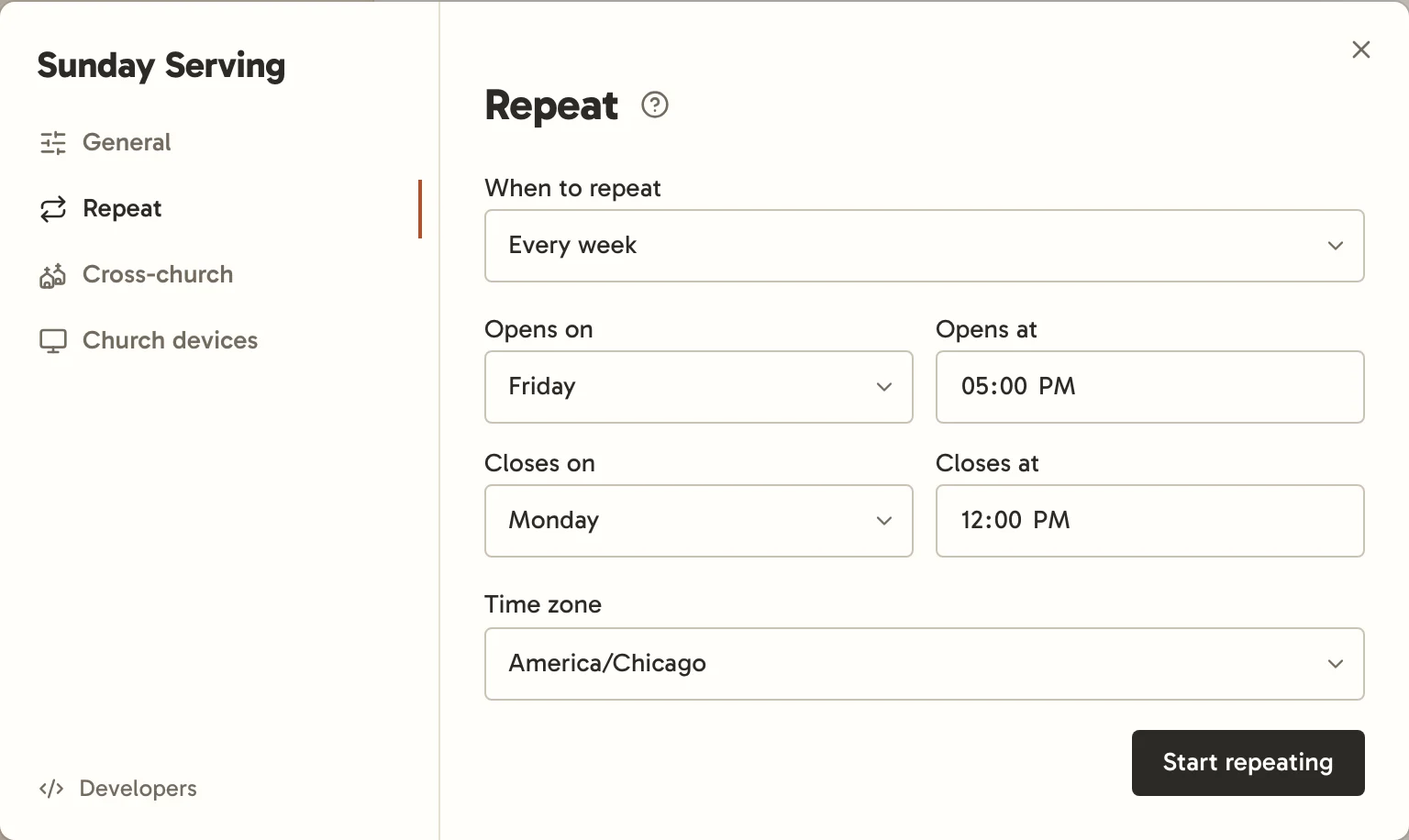
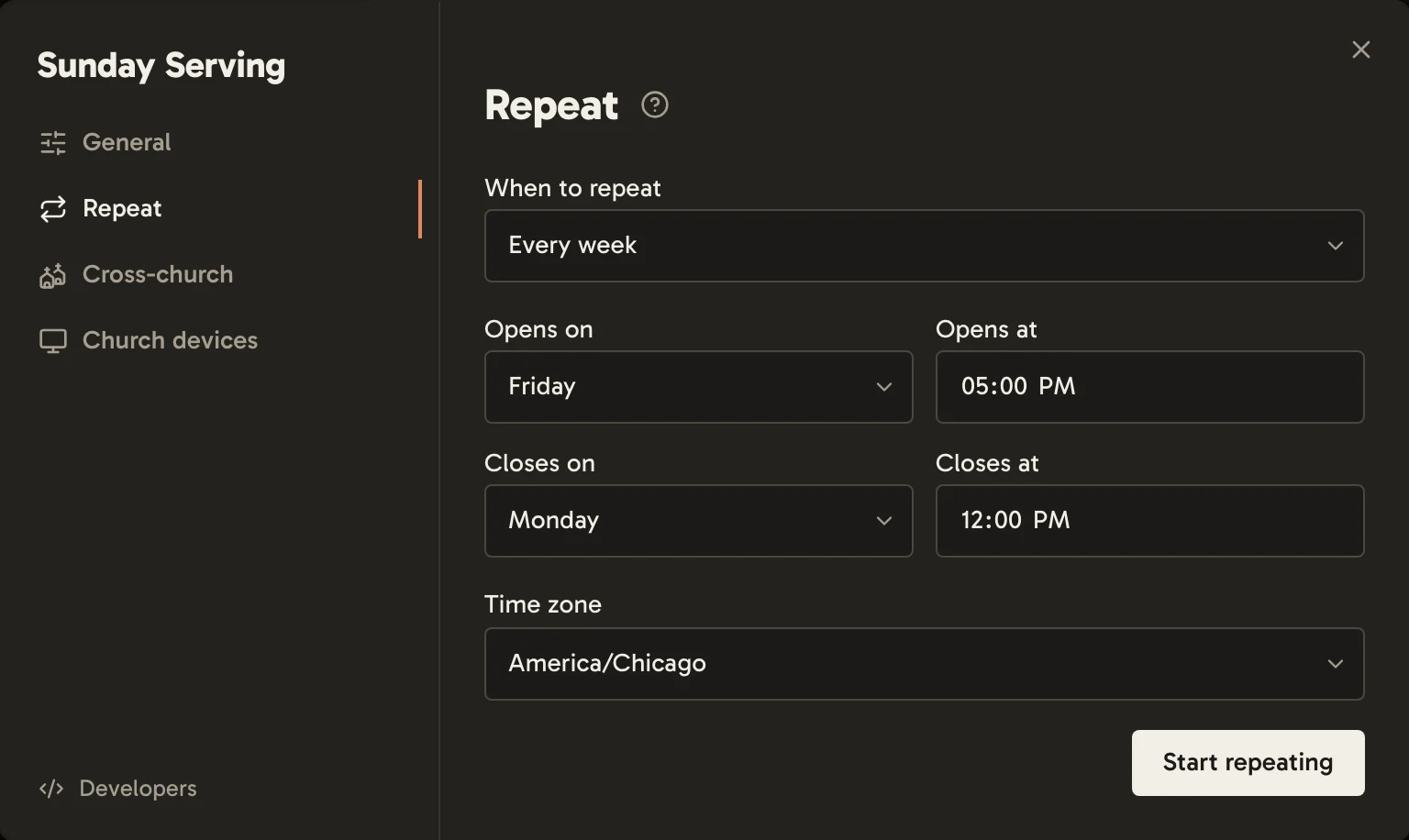
When to repeat:
- Every week, opening and closing at the days and times you set.
- When a leader starts the next one, with Start the next one.
- For each Planning Center service, with whoever’s scheduled on the teams you choose. Only a church admin can choose the teams; leaders can change when each service’s chat opens and closes. See Planning Center.
Select Start repeating to begin. The chat becomes invite-only, and can’t be made a cross-church chat.
Who’s in each week or service
Leaders and bots carry over every time. Mark someone Always here to bring them along too, or Just this one for this date only.
Under Coming up, add people to a future date ahead of time, or copy everyone from an earlier one.
Earlier dates are read-only. Find them with Earlier weeks at the top of the chat, or Earlier for a chat that repeats for each service or when a leader starts it.
Between repeats
While the chat is closed between dates, webhooks and email sent to it are refused. See Webhooks and email.
End this week early, or End this one early, closes the current one.
Stopping
Open Repeat and select Stop repeating. The chat carries on as an ordinary invite-only chat, with the same people, and no longer starts over. Upcoming dates are removed, along with anyone lined up for them, and earlier ones move to the archive, where they stay read-only.
To go from repeating every week to repeating only when a leader starts the next one, choose When a leader starts the next one instead.
To stop one that repeats for each Planning Center service, stop it syncing services first. To close the chat as well, archive it from General.