 Church Chat
Planning Center
Invite people from Planning Center and keep chats in step with it.
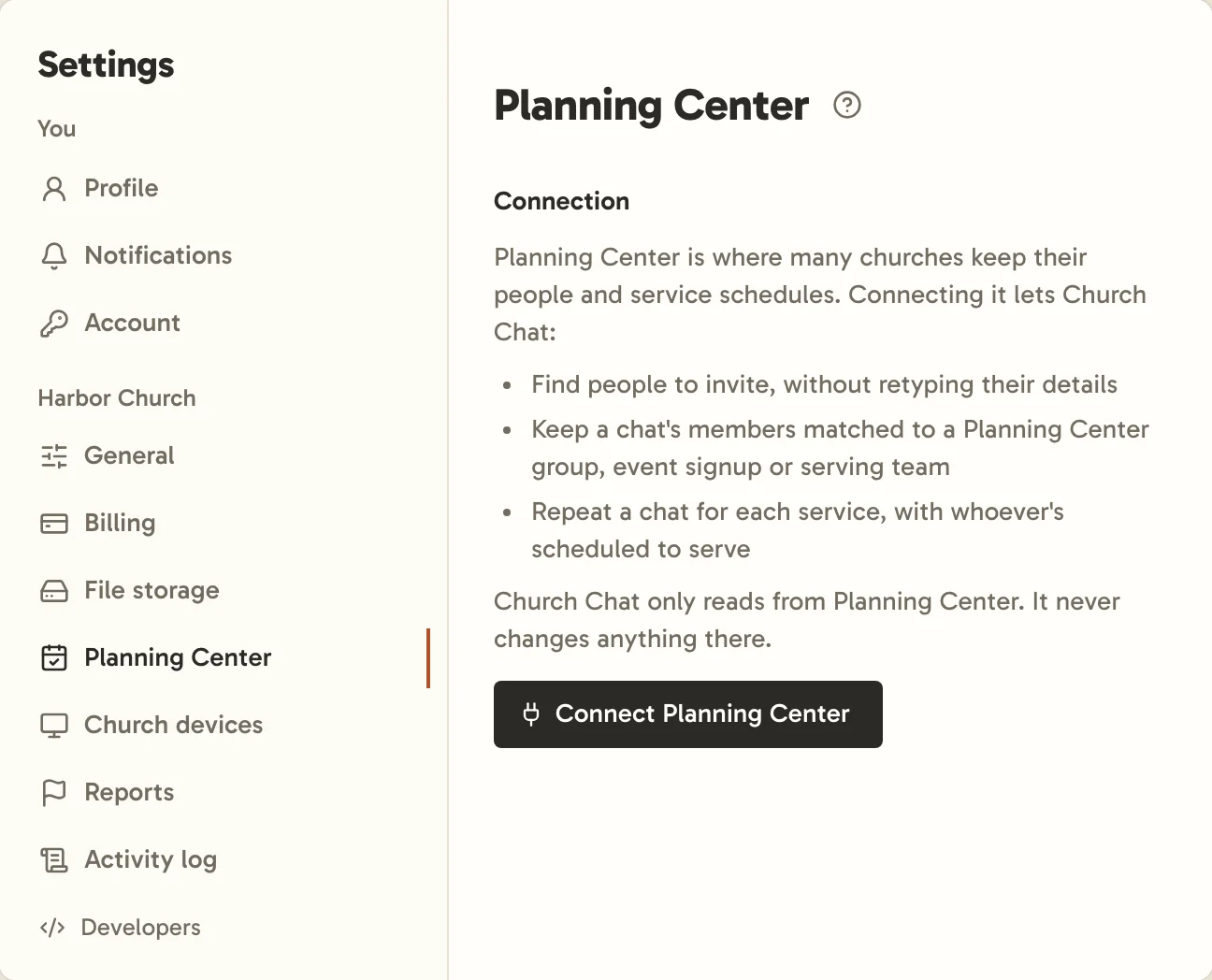
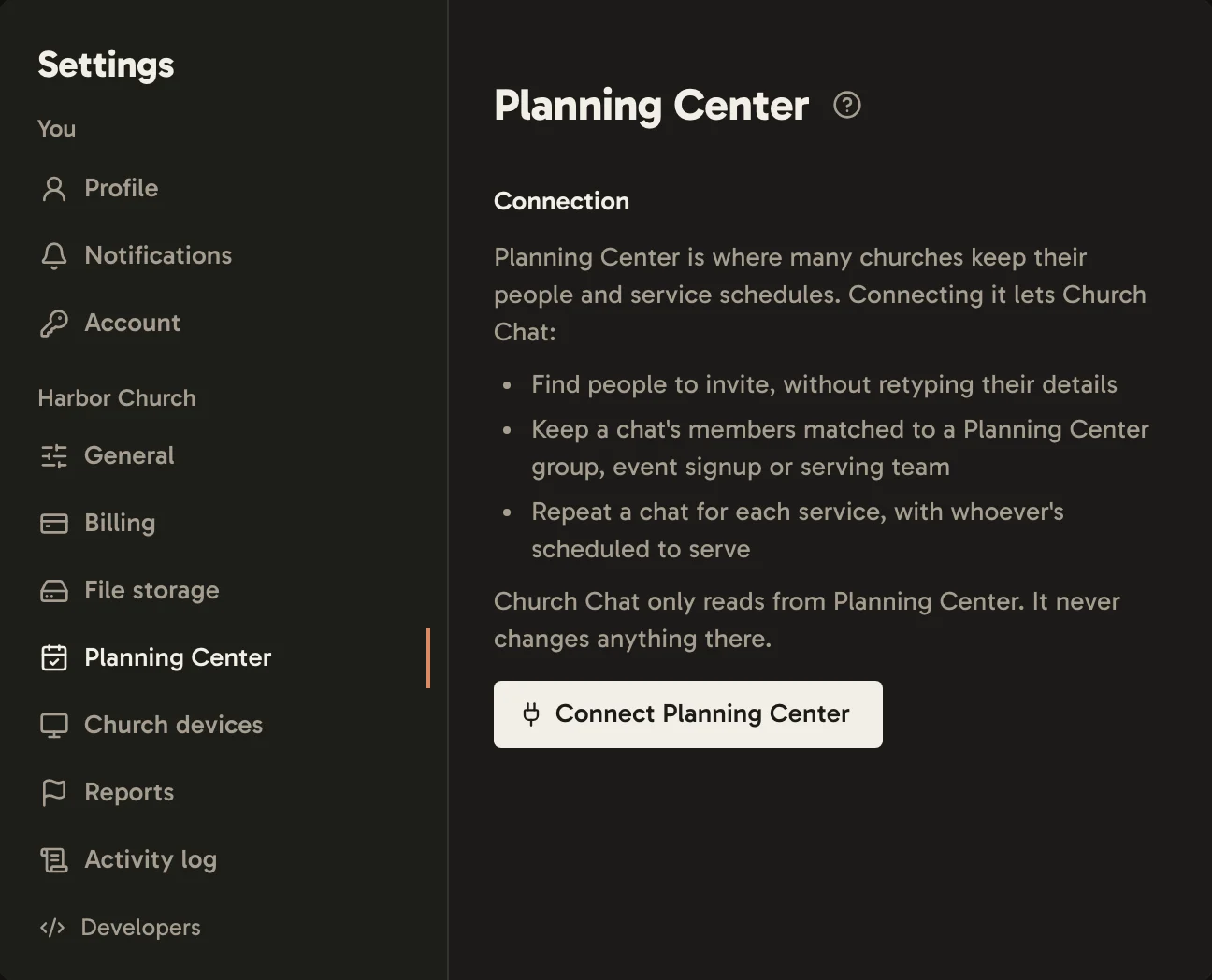
An admin connects your church under Settings → Planning Center. Church Chat only reads from Planning Center, and never changes anything there. It sees what the admin who connected it can see, and picks up changes within an hour. The first sync of a group or signup with thousands of people can take a little longer.
If the connection stops, because Planning Center stops accepting it or the admin who connected it isn’t an admin any more, every admin gets an email. Until someone connects it again, synced chats don’t gain or lose anyone.
Setting up chats
Set up chats lists each Planning Center group and serving team without a chat here, with groups and serving teams on their own tabs.
- Find a group or team, or choose New chat for each to make a chat for everything the list shows.
- Beside each one, choose New chat, or one of your invite-only chats to sync with it.
- For a serving team, choose Who’s in it: Everyone on the team, or Repeat for each service, with whoever’s scheduled.
- Choose who leads it. Leave Its leaders in Planning Center lead it ticked, or use Add me or Choose a leader.
- Choose whether people who already have an account here wait for A leader admits them, or come in with Add them automatically.
- Select Set up.
Your choices are kept on this device until you set them up or Clear them, so closing settings loses nothing. New churches see the same list during setup, right after choosing their chats.
Chats made here are invite-only, and you aren’t in them unless you choose Add me to lead one. Their leaders run them, the way an invite-only chat’s leaders always do.
To start a single chat, choose New chat, then Start from a Planning Center group, serving team or event signup. You lead it, and it’s invite-only.
Until someone leads a chat, Synced chats marks it No leader yet. You can still invite one of its leaders in Planning Center, choose someone at your church to lead it, or lead it yourself. A Planning Center leader who’s an admin here joins it as its leader. Once anyone leads it, it’s theirs to run.
Church Chat is for people 16 and older. Anyone under 16 in Planning Center is left out everywhere: they never show up in a search or a synced chat, and syncing never adds them. That’s anyone Planning Center marks as a child, whose birthdate makes them under 16, or who is in 9th grade or below. Someone left out for their birthdate can join on their 16th birthday, and someone left out for their grade can join within a day of moving past 9th grade. Keep birthdates and grades current in Planning Center so this stays right.
Inviting people
When you add people, search Planning Center by name, email or phone. Invite someone by email, or add their phone number so they can sign in with it.
Syncing with a Planning Center group, signup or team
In a chat’s settings, under Planning Center, choose what to Sync with: A Planning Center group, An event signup or A serving team. A serving team brings in everyone on its roster, whether or not they’re scheduled. Only an admin who leads the chat can set this up, since it shows the chat’s leaders how to reach people. Its leaders can then adjust how it syncs.
Only invite-only chats can sync with Planning Center, since anyone at your church can join an open one. A chat synced with Planning Center stays invite-only until it stops syncing.
- People with an account join straight away, or wait for a leader to approve them.
- People without an account wait to be invited. Nobody is invited automatically.
- While anyone is waiting to be approved or invited, the chat’s leaders see a note about them at the bottom of the chat. Nobody else sees it. Select Review to approve or invite them.
- Leaving in Planning Center takes out only people the sync brought in.
- With Its leaders lead here too, the Planning Center group’s or team’s leaders lead here. Someone who stops leading there stops leading here, unless they’re the chat’s last leader. Leaders you chose yourself are never changed.
Event reminders
Each time a Planning Center group sends a reminder about one of its events, whether on its own or by a leader, the chat synced with that group gets a post from Planning Center within a few minutes. It gives the event’s name, day and time, and says to RSVP in Church Center when the event takes RSVPs. Everyone already got the reminder by email from Church Center, so the post isn’t emailed, and it notifies only people who hear about every message in the chat.
When a Planning Center group or signup ends
A chat stops syncing with Planning Center when:
- the Planning Center group or serving team is archived or deleted in Planning Center
- a signup’s last event time is over
- the Last day you set has passed. Set one for a chat that meets for a season, in the chat’s Planning Center settings or when you set it up. For a signup it’s filled in from Planning Center, and moves if the signup’s last event time does, until you change it.
After that, nobody joins or leaves the chat from Planning Center. Its leaders get an email, and a note in the chat, asking whether to Archive chat or Keep it going as an ordinary chat. Nothing is archived on its own. To sync with Planning Center again after the last day, move the date.
Syncing services
To start a chat fresh for each service with whoever’s scheduled, an admin who leads it opens its settings, then Repeat, and chooses For each Planning Center service. Pick the service type, the teams, and when the chat opens and closes for each service. The chat’s leaders can change those times, but only an admin can change the service type and teams. Everyone shows with their position and whether they’ve accepted. The teams' leaders in Planning Center lead it for every service, even in weeks they aren’t scheduled. See Repeating chats.