 Church Chat
Finding your way around
The sidebar, unread messages, and getting anywhere quickly.
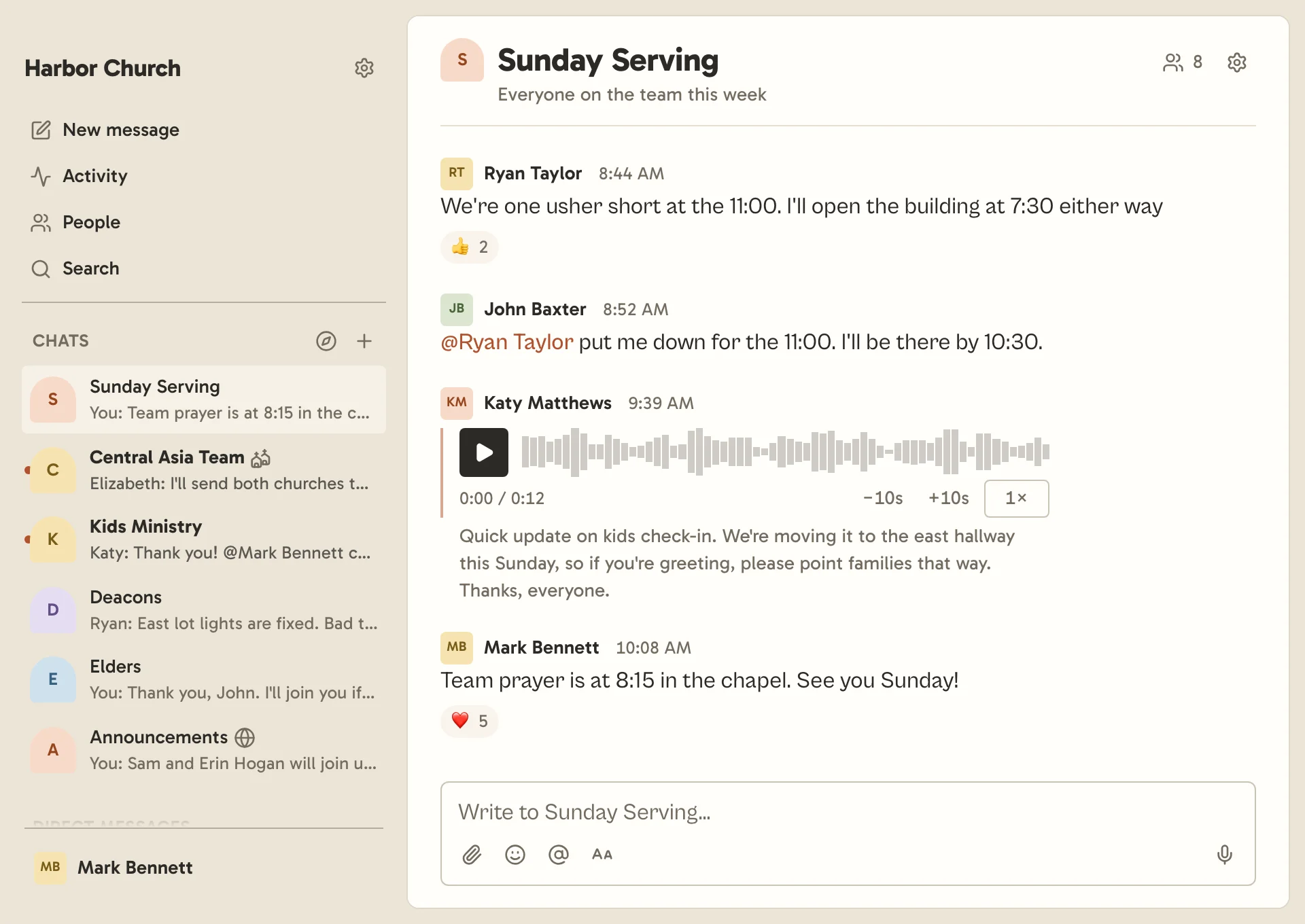
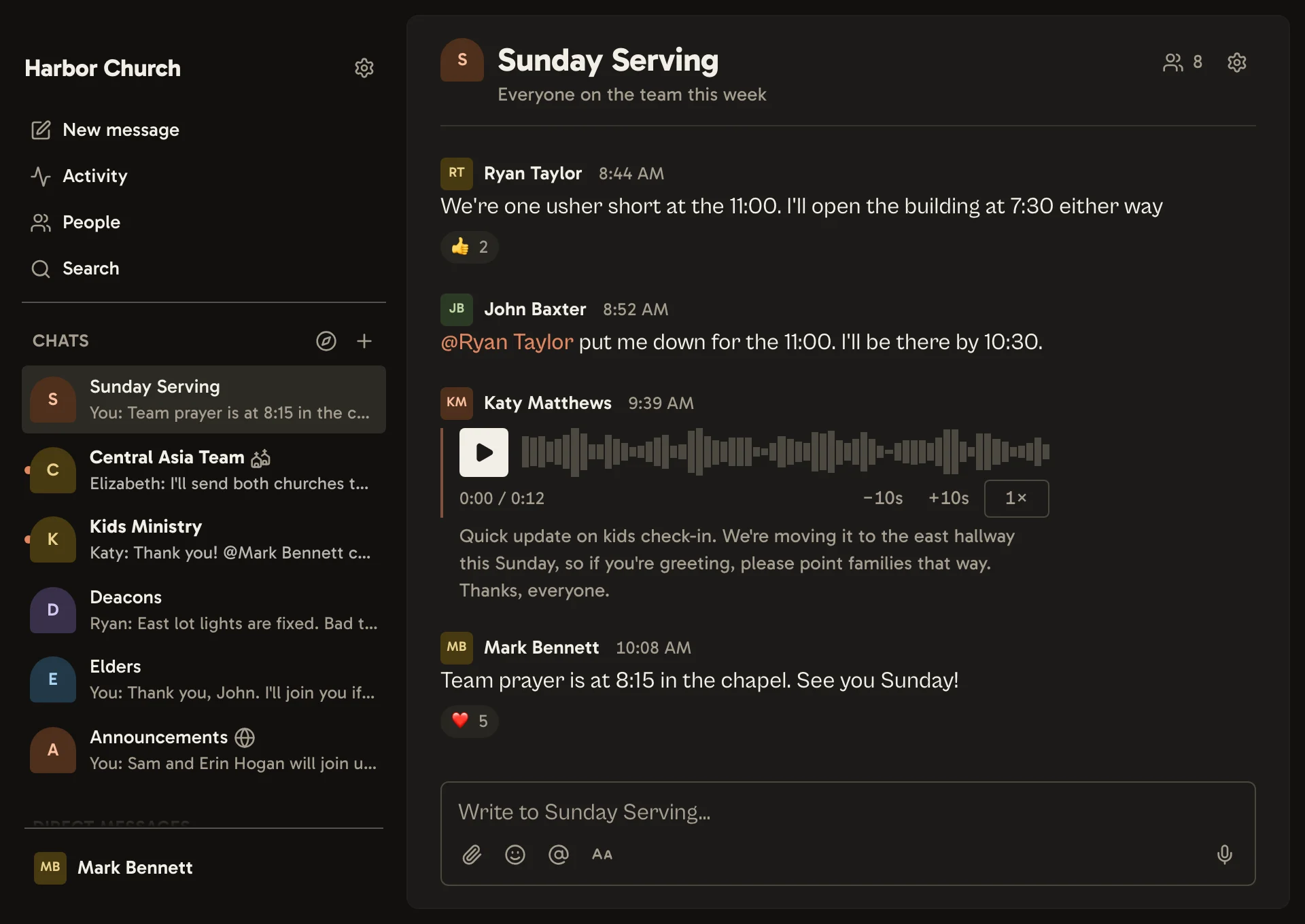
The sidebar
The top of the sidebar has:
- Settings, beside your church’s name. Settings fill the page until you choose a chat.
- New message, to start a direct message. Only staff see it.
- Activity, for mentions, replies and reactions, and under Scheduled, messages you’ve set to send later. See Activity and search.
- People, who’s at your church. Only staff see it, and only admins see Standard members there.
- Search.
Below those are your chats, then your direct messages. The compass beside Chats finds
open chats to join. A chat with unread messages is in bold
with a dot beside it, and @1 means one message is meant for you. A muted chat never shows
an unread count.
Arranging it your way
Open a chat’s … menu to Star it, which keeps it at the top. Move to puts it in a section of your own. You can also drag a chat onto another section to move it there, or drop it between two sections to create a new section. On a phone, hold a chat to drag it. Each section lists its chats with the newest message first.
Archived chats are under Archived at the bottom, behind Show archived chats.
Getting anywhere quickly
Press ⌘K (Ctrl+K on Windows) to jump to a chat, a person or a page by typing part of its name. It also finds open chats you haven’t joined yet.
Press ⌘F (Ctrl+F) in a chat to search it.
Simple view
If you only need your chats, turn on Simple view in Settings → Profile. The sidebar then lists just your conversations, without Activity, People or sections. Writing a message works the same, with formatting, mentions and sending later.