 Church Chat
Chatting
Writing messages
Format, mention people, react, and edit or delete what you’ve sent.
Type in the box at the bottom of a chat and press Enter to send. Shift+Enter starts a new line.
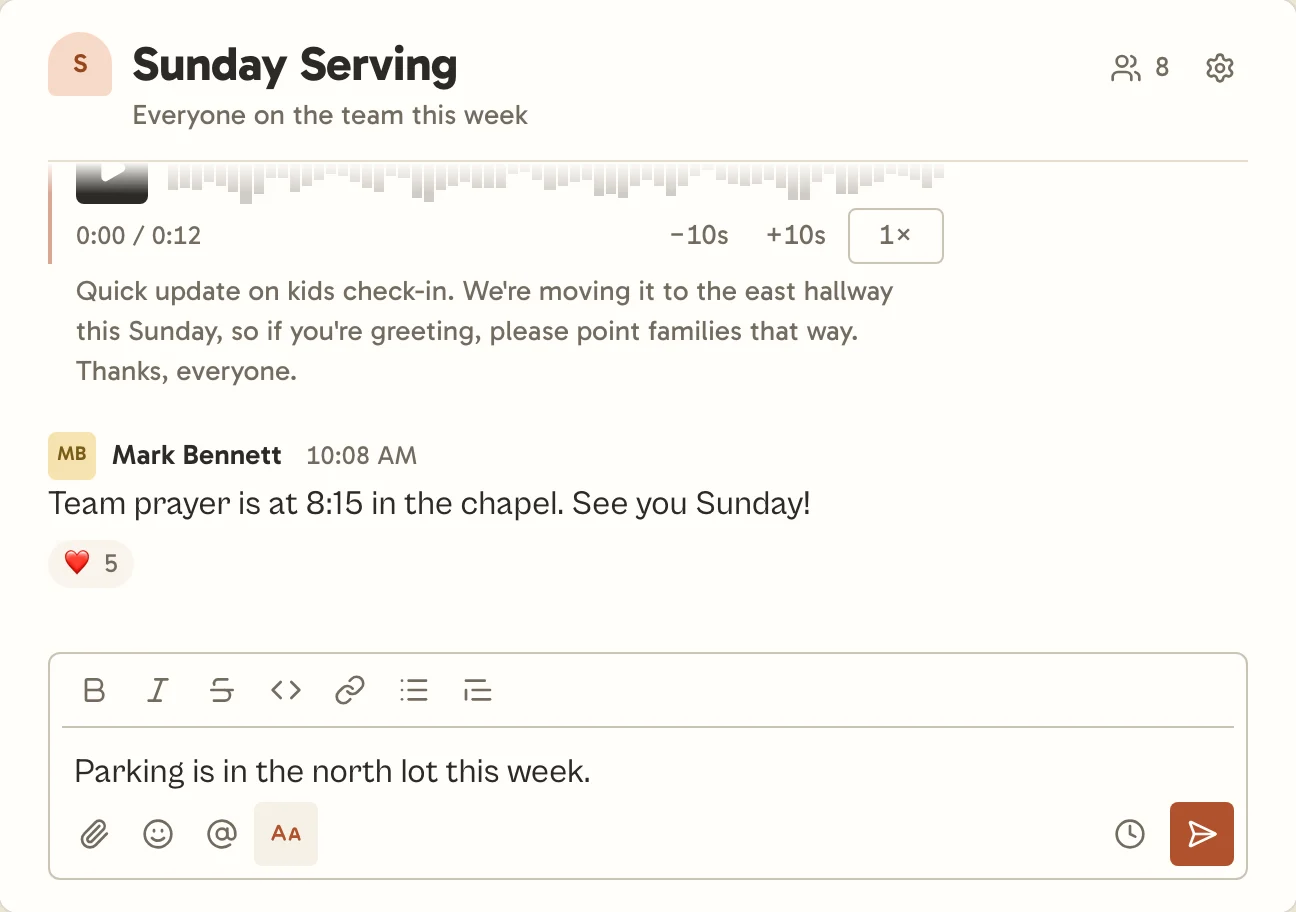
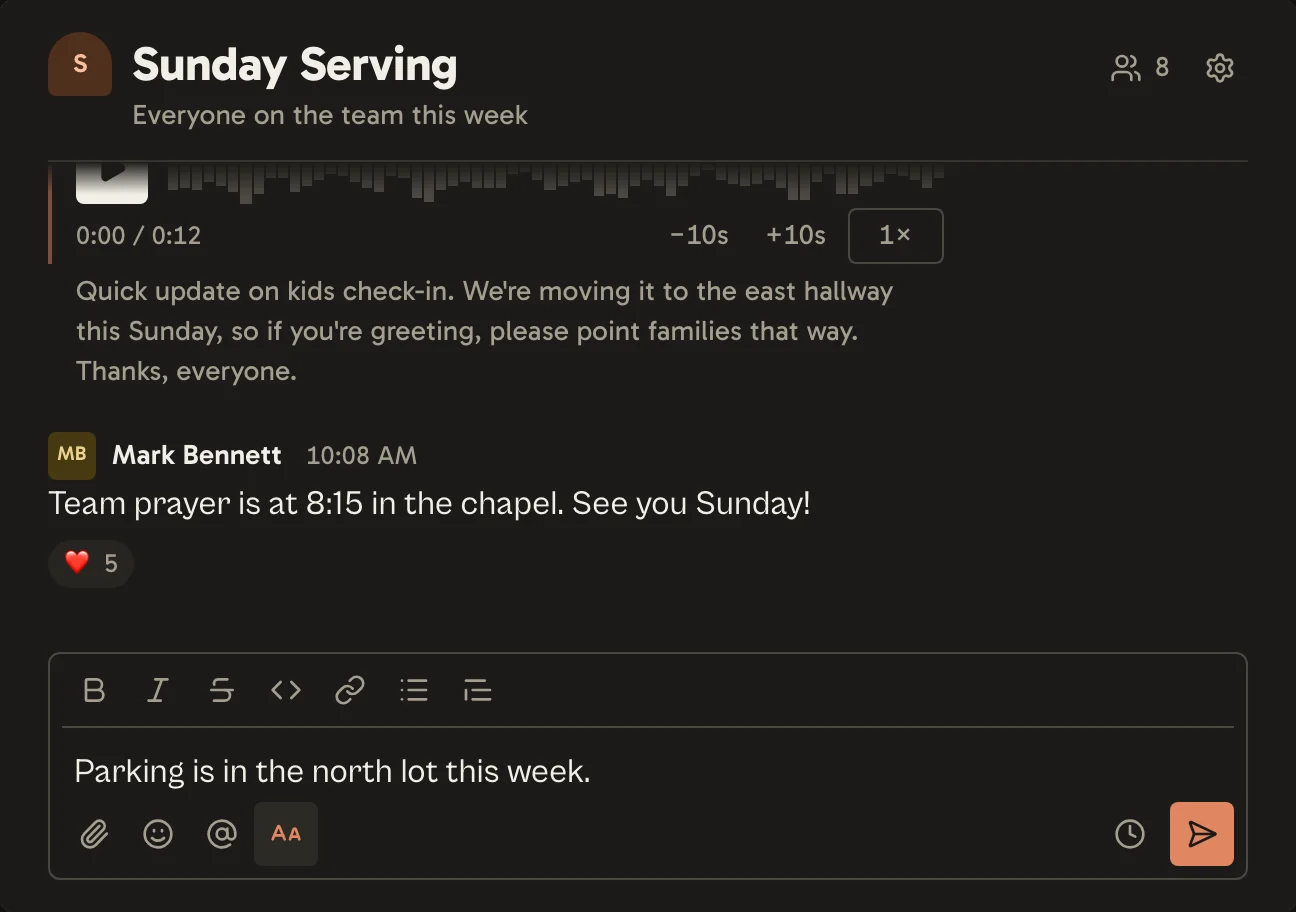
Formatting
Select Aa (Show formatting) for the formatting buttons, or use a shortcut. On Windows, use Ctrl where these say ⌘.
| To get | Press |
|---|---|
| Bold | ⌘B |
| Italic | ⌘I |
| ⌘⇧X | |
Code | ⌘E |
| A link | ⌘⇧U |
| A bulleted list | ⌘⇧8 |
| A quote | ⌘⇧9 |
Mentions, chats and emoji
- Type
@and part of a name to mention someone in the chat. They’re told about it unless they’ve turned notifications off. - Leaders and church admins can also mention
@everyone, which reaches everyone in the chat who hasn’t muted it or set it to Nothing. - Type
#to link to another chat. Anyone who can’t see that chat sees #invite-only chat. - Type
:and a word to find an emoji, or select the smiley button.
Reacting and more
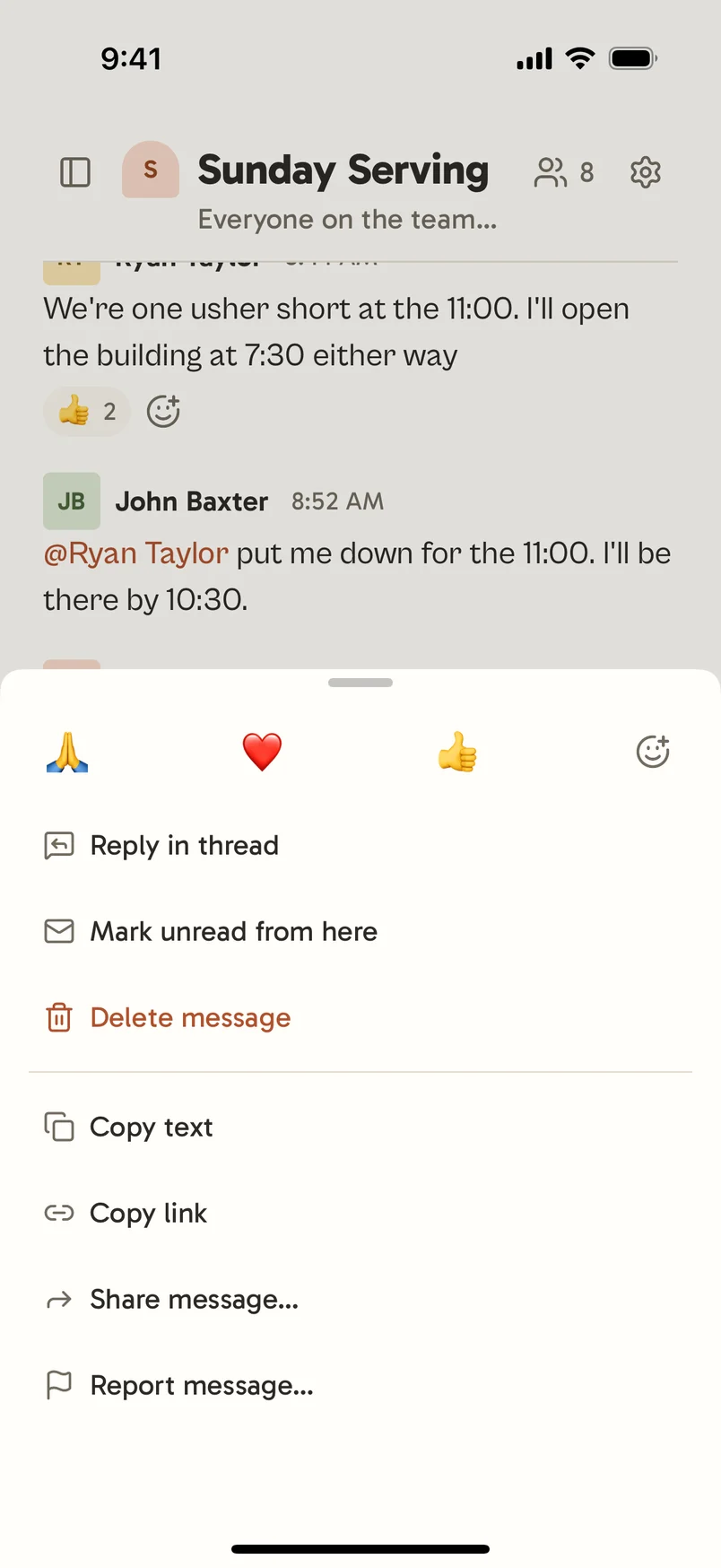
Point at a message, or press and hold it on a phone, to see what you can do with it.
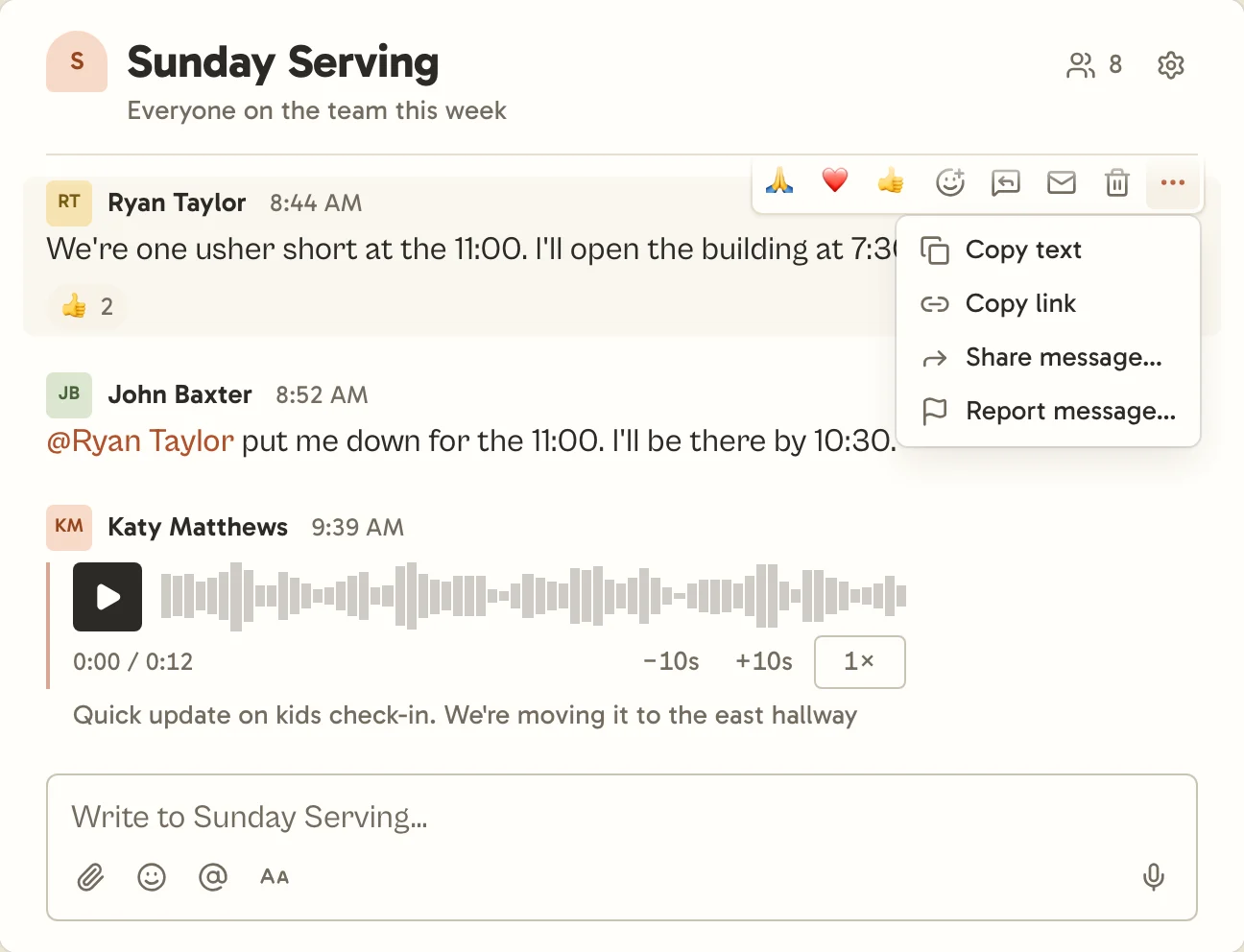
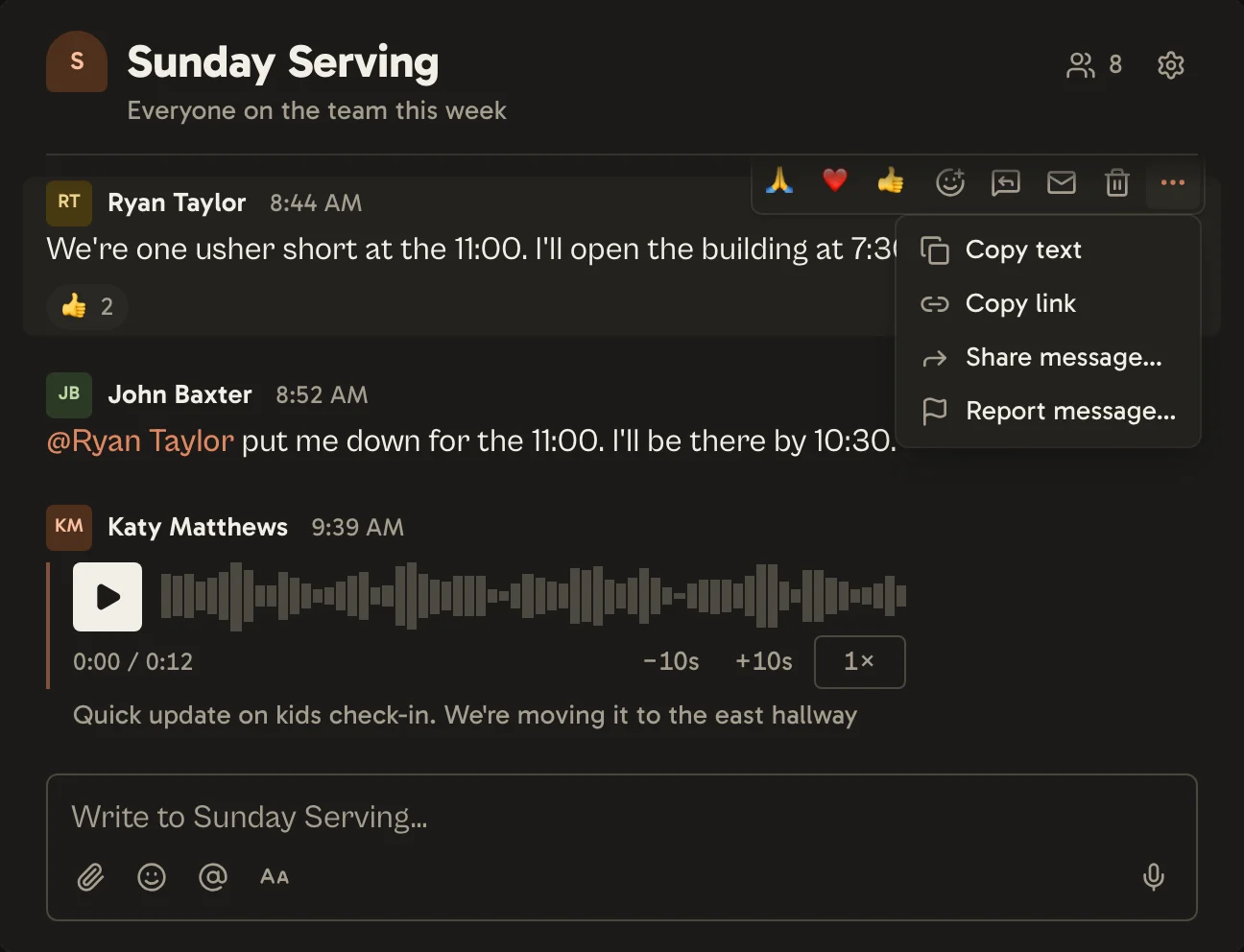
- React with one of the quick emoji, or Add reaction for any other.
- Reply in thread keeps a side conversation together. See Threads.
- Mark unread from here brings you back to this point later.
- Copy link gives a link to this message that works for anyone who can read the chat. Once the message is deleted, the link opens the chat and says so.
- Share message… posts it into another chat or a direct message, with a note if you like. People there see the message even if they aren’t in the chat it came from, but not its files.
- Report message… sends it to your church’s admins or to the Church Chat team. See Blocking and reporting.
Editing and deleting
You can edit your own messages, and they’re marked edited. You can delete your own messages too, and leaders can delete anyone’s in their chat. A deleted message shows as This message was deleted., and its files are deleted with it.
Nothing can be edited or deleted in an archived chat.