 Church Chat
Phone and desktop apps
Use Church Chat in a browser, on your phone, or on your computer.
Church Chat works in any up-to-date browser, and there are apps for iPhone, Android, Mac and Windows. They all show the same chats and messages, and you sign in to each with the same account.
On your phone
To get the app, open the download page on your phone, or scan the code you’re shown on your computer when you first join.
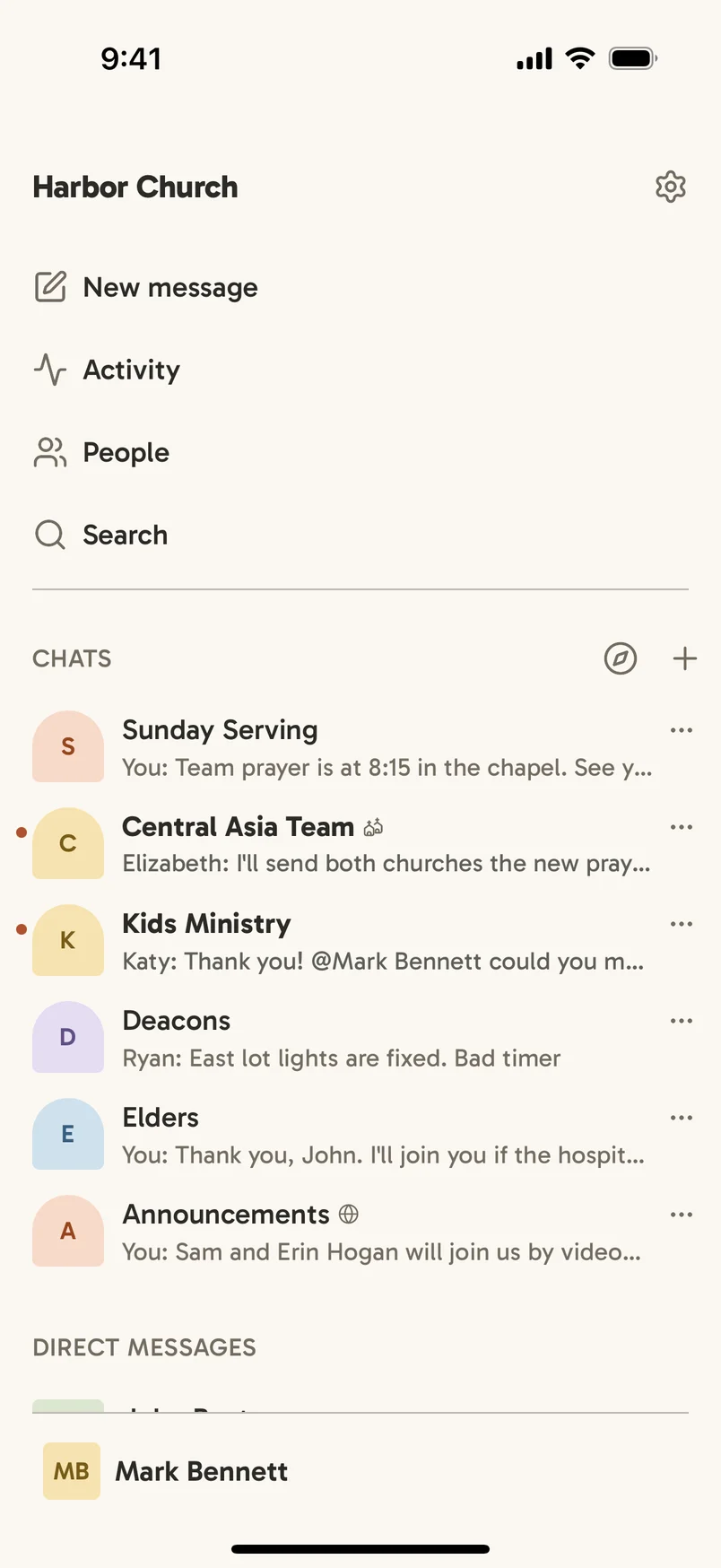
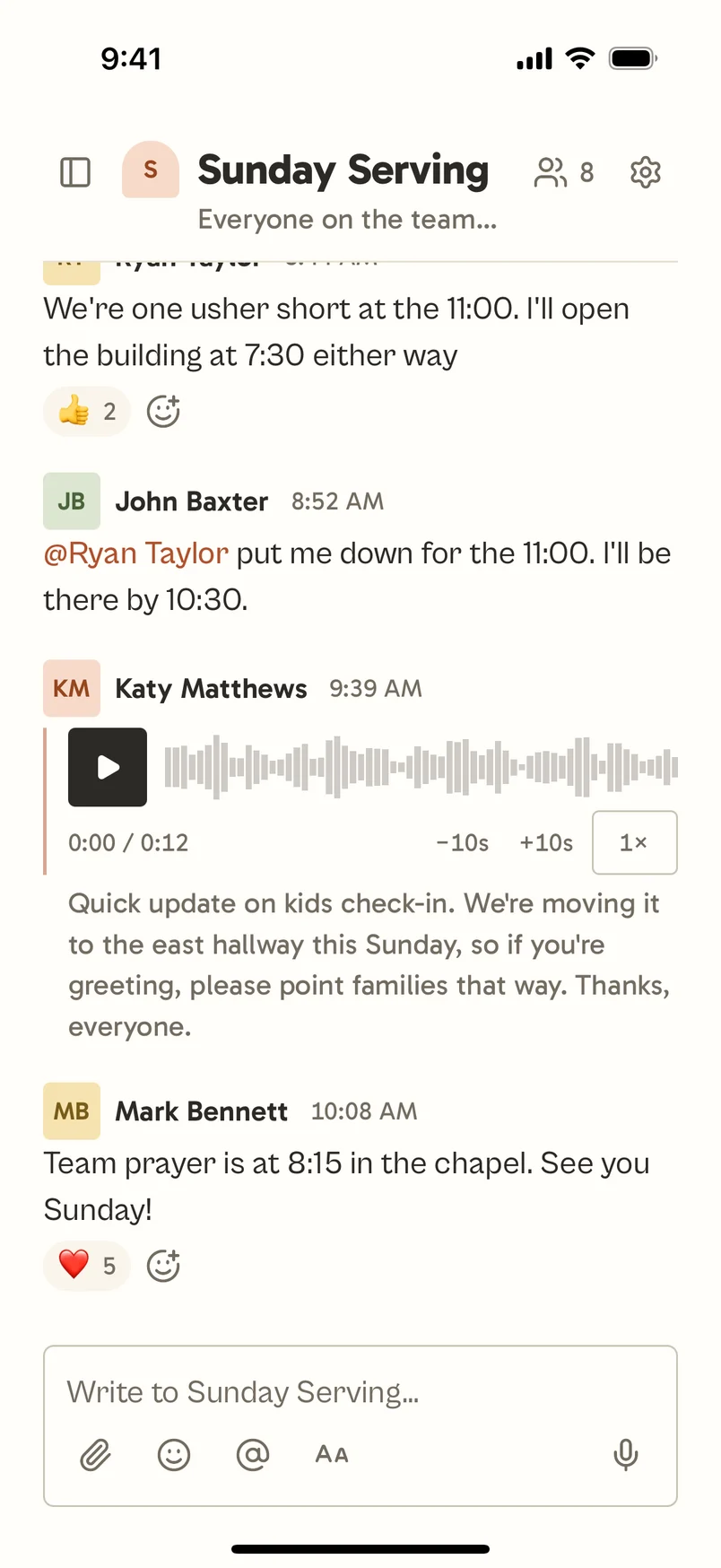
The phone app sends notifications even when it’s closed, and you can reply from a notification. To turn them on, open Settings → Notifications and switch on This device.
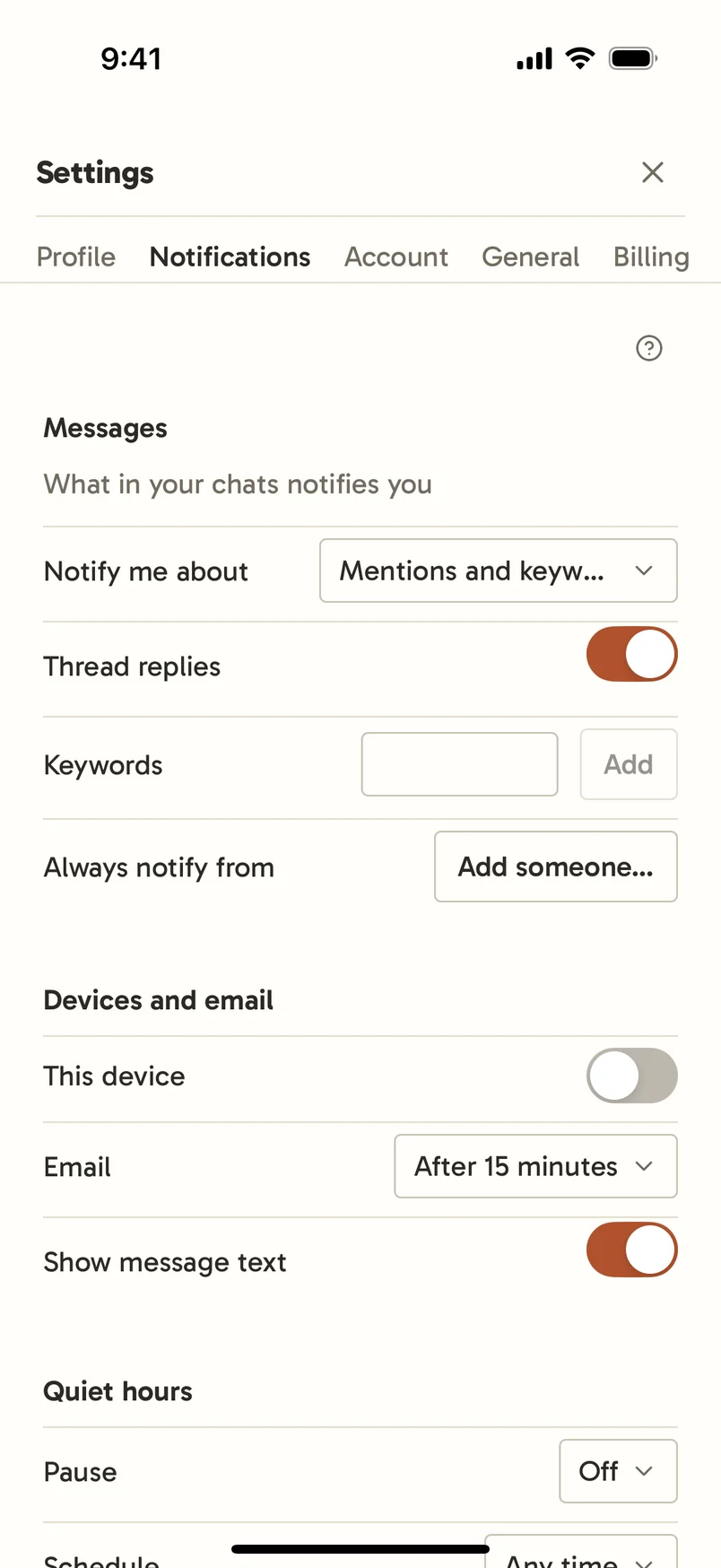
On an iPhone without the app, add Church Chat to your Home Screen from Safari first, then turn on notifications the same way.
On your computer
Download the app for Mac or Windows from the download page, or choose Get the desktop app in the menu under your name. The download page shows how to open it the first time.
On a Mac, the Dock icon shows your unread count, and on Windows the taskbar icon shows a dot. The app can start when you sign in to your computer (Open at Login), and on a Mac you can reply from its notifications. When it starts again, it opens where you left off. Back and Forward are in the View menu: ⌘[ and ⌘] on a Mac, and Alt+Left and Alt+Right or a mouse’s side buttons on Windows.
On Windows, the app updates itself. When an update is ready, select the Church Chat is ready to update notification to restart into it. On a Mac, the app tells you when a new version is out: select the notification to download it, then drag it into Applications to replace the old one.
If the app on your phone or computer is too old to connect, it shows Update Church Chat until you install the latest version.
If you open a link to anywhere in your church in a browser on a computer with the app installed, you’ll be offered Open this in the desktop app? If the app doesn’t open, perhaps because it’s been removed, the page offers to download it and stops asking.
Signing in with a passkey or an emailed link happens in your browser, which hands you back to the app. The browser says which app it’s signing in, so continue only if you just asked that app to sign in.