 Church Chat
Leading a chat
Chat settings
Change who can join a chat, who can post, and more.
Open the chat and select its name at the top. Leaders can change these. Everyone else sees who can join the chat and who can post.
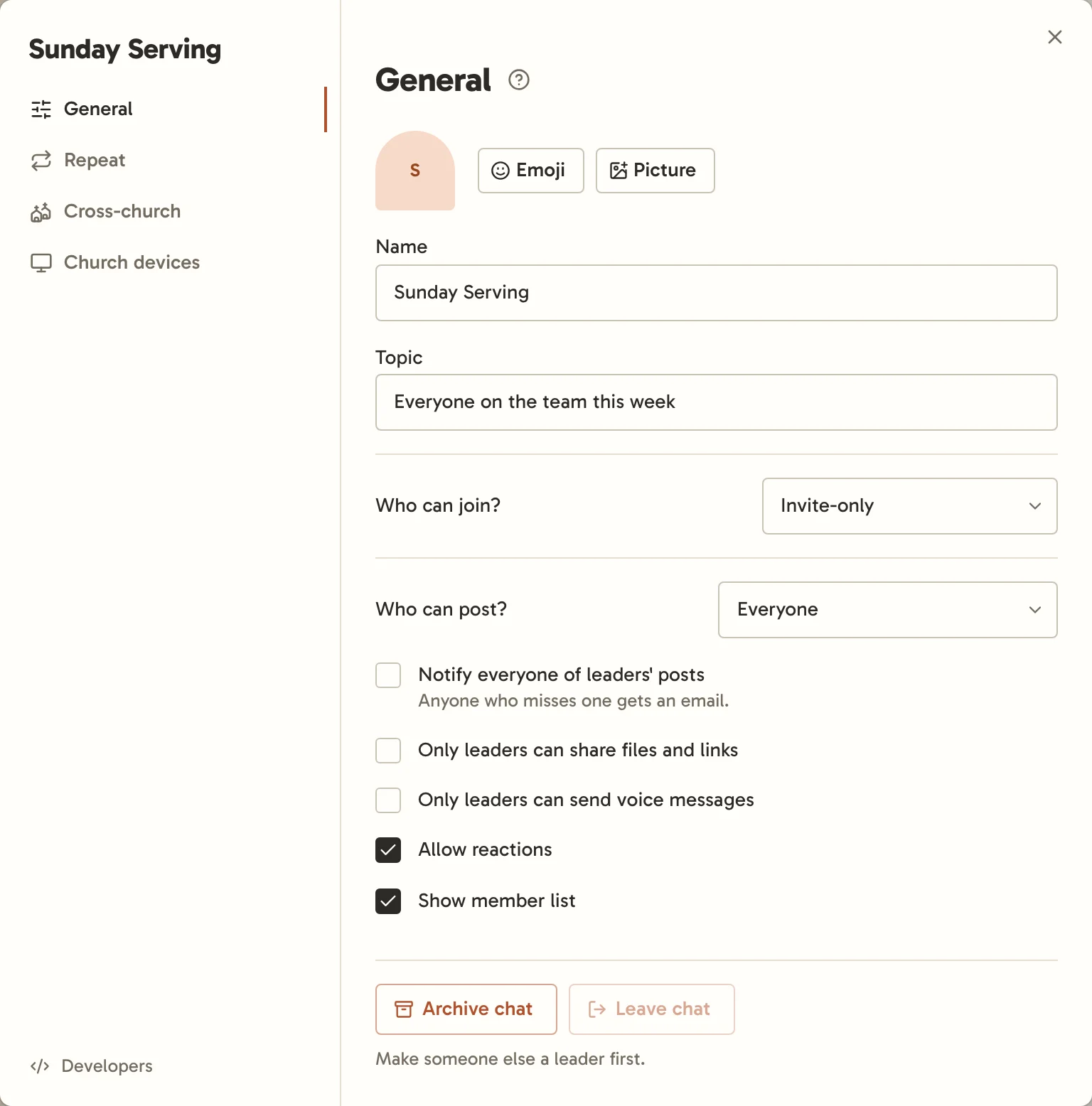
- A picture: choose an Emoji or upload a Picture.
- Name and Topic.
- Who can join? Only a church admin can make an invite-only chat open, and they’re asked to confirm first. People who join after that see only what’s posted from then on. Everything said before stays with the people who were there.
- Who can post? With Leaders and selected members, give anyone else who should post Can post in the member list. Choose nobody and only leaders post, which suits announcements. In an open chat, Everyone means anyone who gets into your church can join the chat and post whatever they like, including someone who joined from an invite link or QR code that’s been passed around. The settings warn you, and ask you to confirm before saving.
- Only leaders can share files and links keeps photos, files and links to the chat’s leaders
and the church’s admins. Everyone else can still post text. A link is caught however it’s
written, like
example (dot) com; email addresses aren’t links. An open chat starts with this on, and making a chat open turns it on. An invite-only chat starts with it off, and its leaders can turn it on. - Only leaders can send voice messages keeps recordings to the chat’s leaders and the church’s admins. It starts off in every chat.
- Anyone can reply in threads lets everyone answer in threads when only some people can post.
- Notify everyone of leaders' posts tells everyone in the chat about each new post from a leader, and emails anyone who hasn’t seen it. Replies in threads don’t count. Announcements starts with this on.
- Allow reactions.
- Show member list. Turned off, people see only themselves, bots and church devices in the list, and joining posts no line in the chat. In an open chat, only staff and leaders ever see the list, since anyone at your church can join. Nobody sees who’s online or typing in an open chat, or in one with the list turned off.
- Add new members automatically puts everyone who joins your church into this chat. Only church admins can change it.
Archiving
Archive chat makes it read-only and tells everyone in it. Archived chats stay in the sidebar under Archived, and Unarchive brings one back.
Leaving
Leave chat is at the bottom of the chat’s settings. You’ll need a new invite to come back to an invite-only chat.
The last leader of an invite-only chat can’t leave until someone else leads it, because nobody outside the chat can see it to step in.