 Church Chat
Files and voice messages
Send photos, documents and recordings.
Files and photos
Select the paperclip, drag files onto the chat, or paste them. A message can carry up to 10 files, each up to 50 MB, with or without text.
Photos show in the conversation. Select one to see it full size, and use the arrow keys to move between them. Copy link gives a link that opens the photo on its message, for anyone who can read the chat. Photos have their location removed when they’re sent.
Other files download when selected. Only people who can read the chat can open its files, and deleting a message deletes its files.
Some chats let only their leaders share files and links, which every open chat does unless its leaders change it. There, nobody else sees the paperclip, and a message with a link won’t send. See Chat settings.
Voice messages
When the message box is empty, the microphone takes the place of Send. Select it to start recording, for up to 15 minutes. You can pause, then listen back before choosing Send voice message or Discard. It finishes sending while you carry on, and if your connection drops first, it stays in the chat marked Not sent so you can Try again.
A chat can keep voice messages to its leaders. There, nobody else sees the microphone.
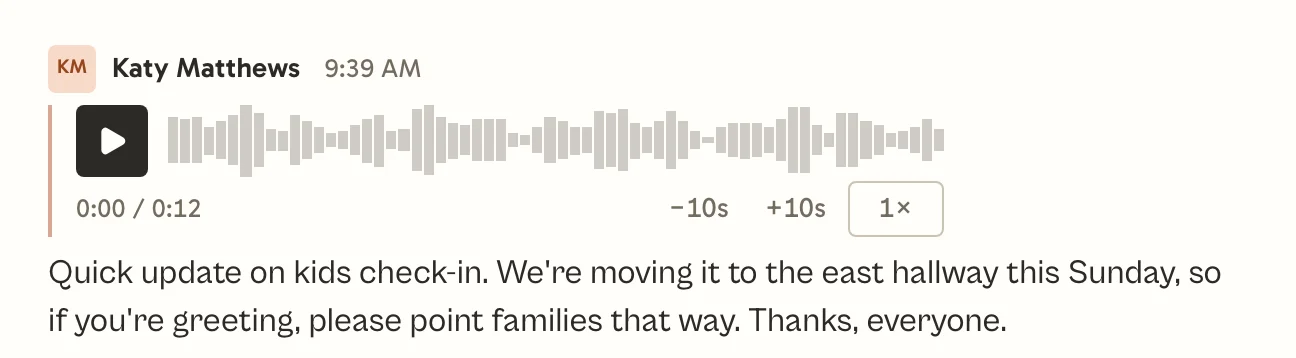
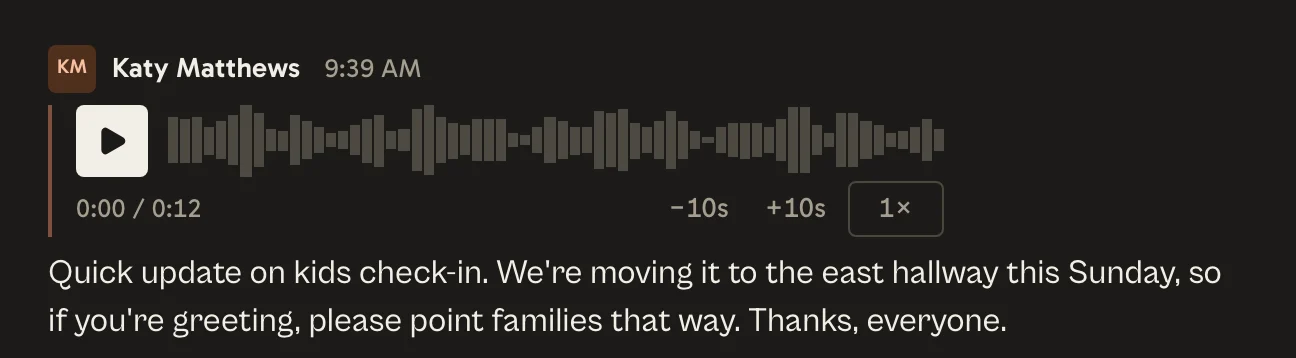
Voice messages are written out once they’re sent, so people can read them instead of listening. Names of people in your church are usually spelled the way they are in Church Chat. Select Show the whole transcript for a long one. Copy text copies what was said, and search finds it. Voice messages don’t use any of your church’s file space.
If you see Microphone access is blocked, allow Church Chat to use the microphone in your browser’s or phone’s settings.