 Church Chat
Notifications
Choose what interrupts you, when, and where.
Notifications only decide what interrupts you. Everything meant for you still waits in Activity whenever you look.
For one chat
Open a chat’s … menu in the sidebar.
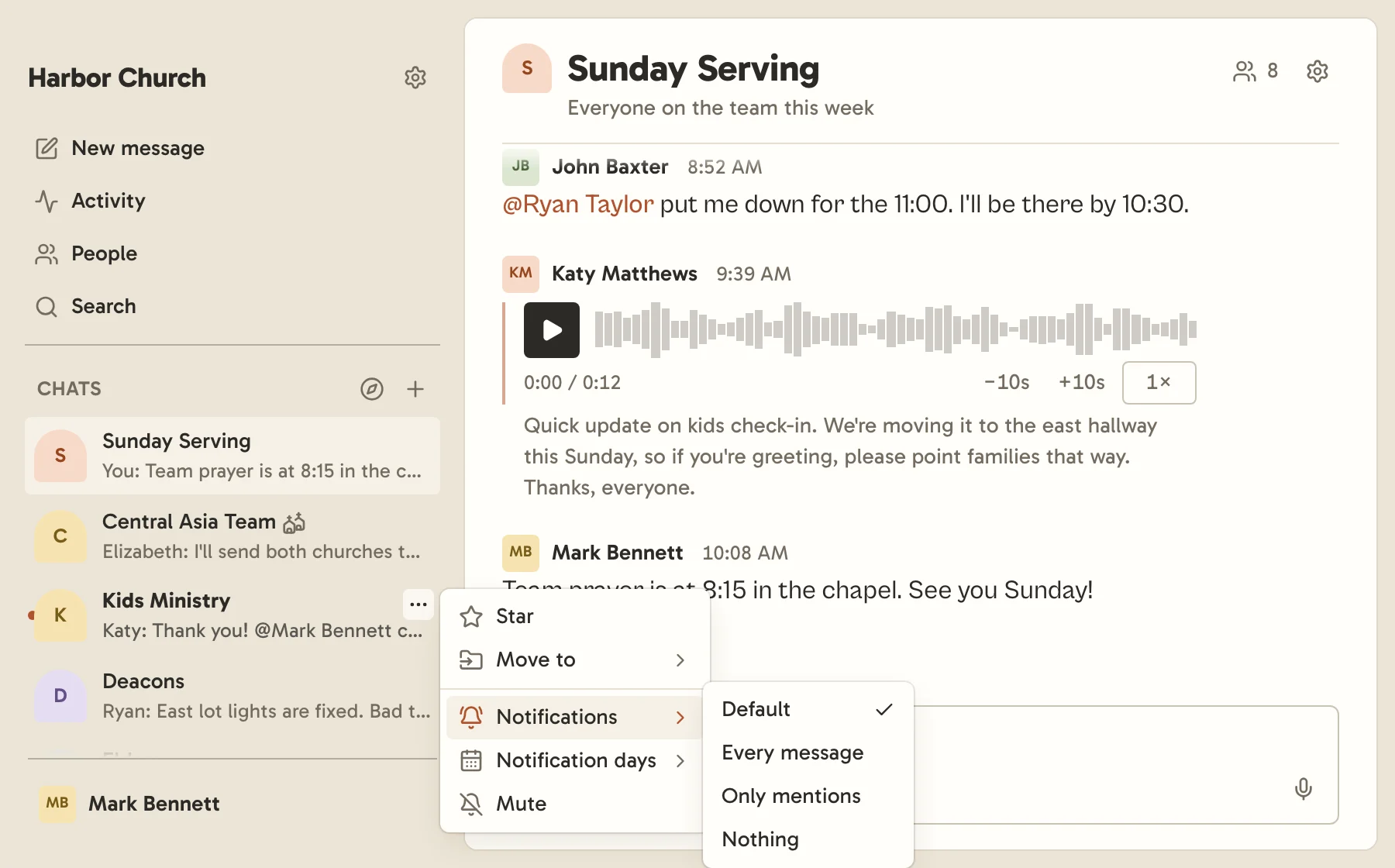
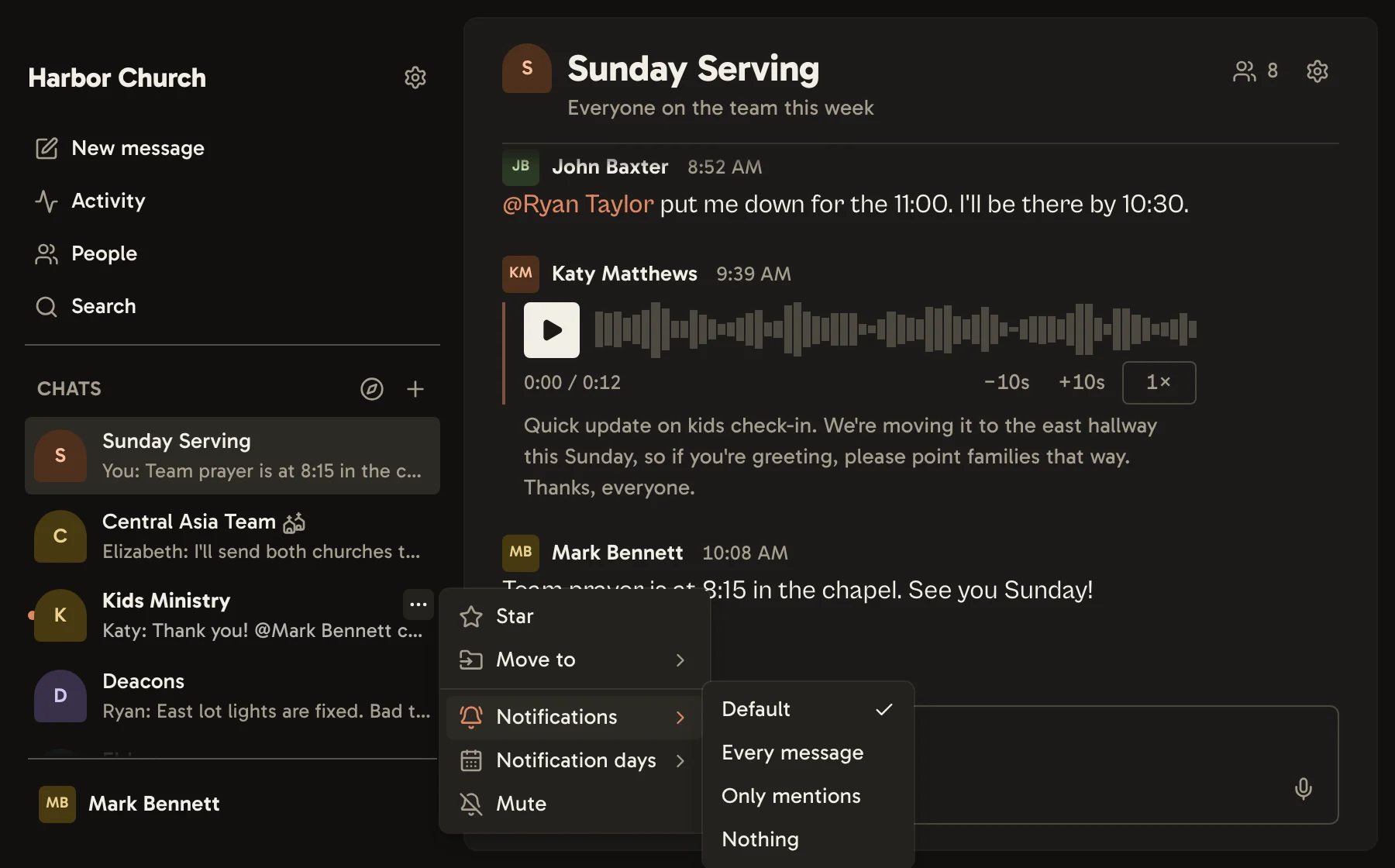
- Notifications: hear about Every message, Only mentions, or Nothing. Default follows your own setting.
- Notification days: hear from this chat only on the days you tick, like Sunday for a serving team.
- Mute: nothing from this chat interrupts you, it shows no unread count, and neither your
keywords nor
@everyonecount in it.
Every chat you’ve changed is listed under Chat overrides in Settings → Notifications, with Reset to undo it.
For everything
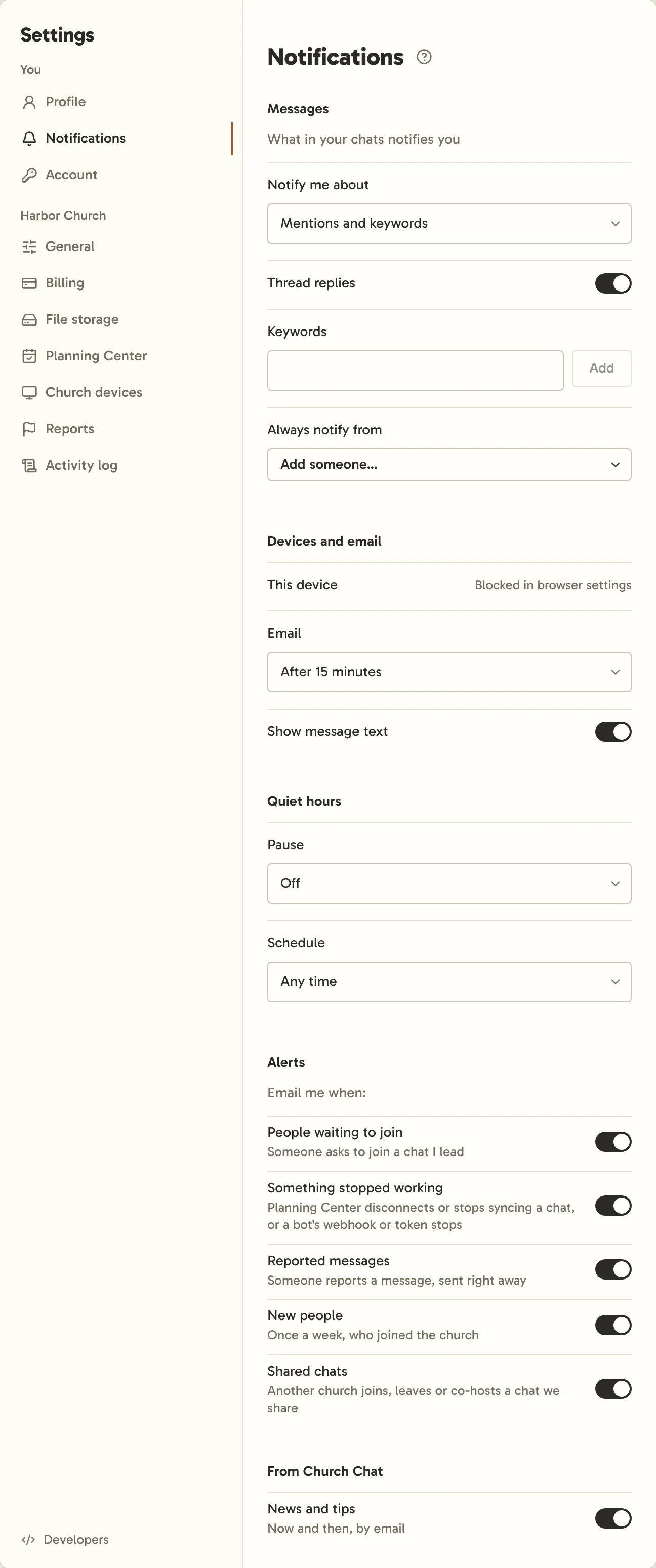
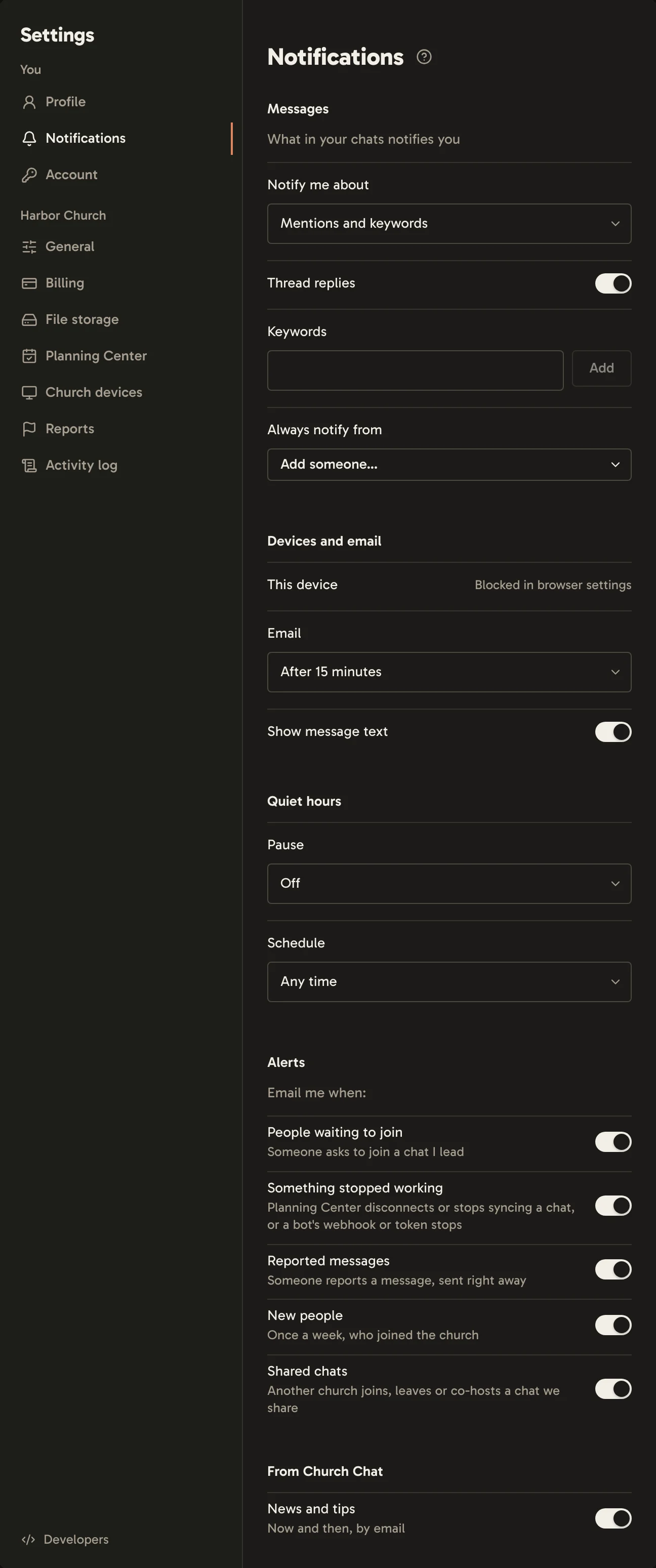
Open Settings in the sidebar, then Notifications.
Messages
- Notify me about is the default for every chat: Mentions and keywords, Every message, or Nothing. Direct messages count as meant for you.
- Thread replies decides whether replies in threads you follow interrupt you.
- Keywords are words you want to hear about wherever they’re said, like your ministry’s name.
- Always notify from lists people who get through a pause or your schedule when they message or mention you. A chat you’ve muted still stays quiet.
Devices and email
- This device turns them on for the browser or app you’re using. Select Send a test to check. Every other browser you’ve turned them on in is listed below it.
- Email sends what you’ve missed, after 15 minutes or an hour, if you haven’t seen it by then, along with any chat or church you’re no longer in. It never quotes invite-only chats or direct messages.
- Turn off Show message text to keep every message’s words out of email and notifications.
Quiet hours
- Pause stops interruptions for a while, from 30 minutes to a week. Select Resume to end it early.
- Schedule sets the hours you can be reached: any time, every day, weekdays, or your own hours for each day.
Alerts
Leaders and admins choose which alerts are emailed, each on its own. Leaders see the first two.
- People waiting to join a chat you lead.
- Something stopped working, like Planning Center disconnecting or a bot’s webhook pausing.
- Reported messages, sent straight away.
- New people emails a church’s admins on Monday morning with who joined in the past week and how they came in. A week when nobody joined sends nothing.
- Shared chats, when another church joins, leaves or helps run one.
Apart from reports and new people, alerts arrive together at most once an hour, leaving out anyone a leader has already let in. Turning one off leaves it in Activity and the app. Billing and sign-in email always comes.
From Church Chat
- News and tips is the occasional email from Church Chat itself.
While Church Chat is showing in a browser tab, or the desktop app is the window in front, your phone and other devices stay quiet and notifications show on that computer instead.
If notifications don’t arrive
- Blocked in browser settings means your browser is refusing them. Allow notifications for Church Chat in its site settings, then switch them on again.
- On an iPhone, add Church Chat to your Home Screen first, or use the app.
- Check you aren’t paused, outside your schedule, or muted in that chat.