 Church Chat
People and roles
Invite people to your church and choose how much each person can see.
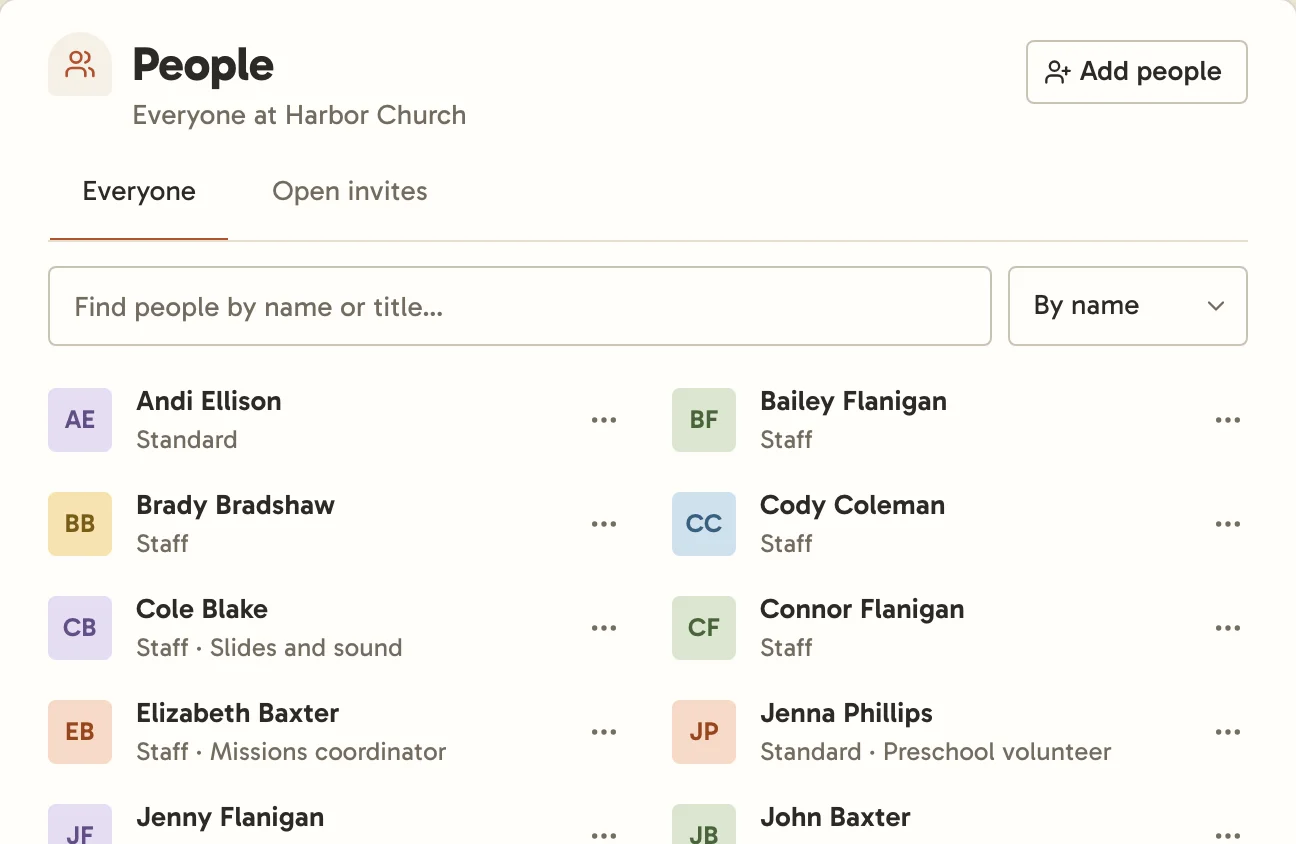
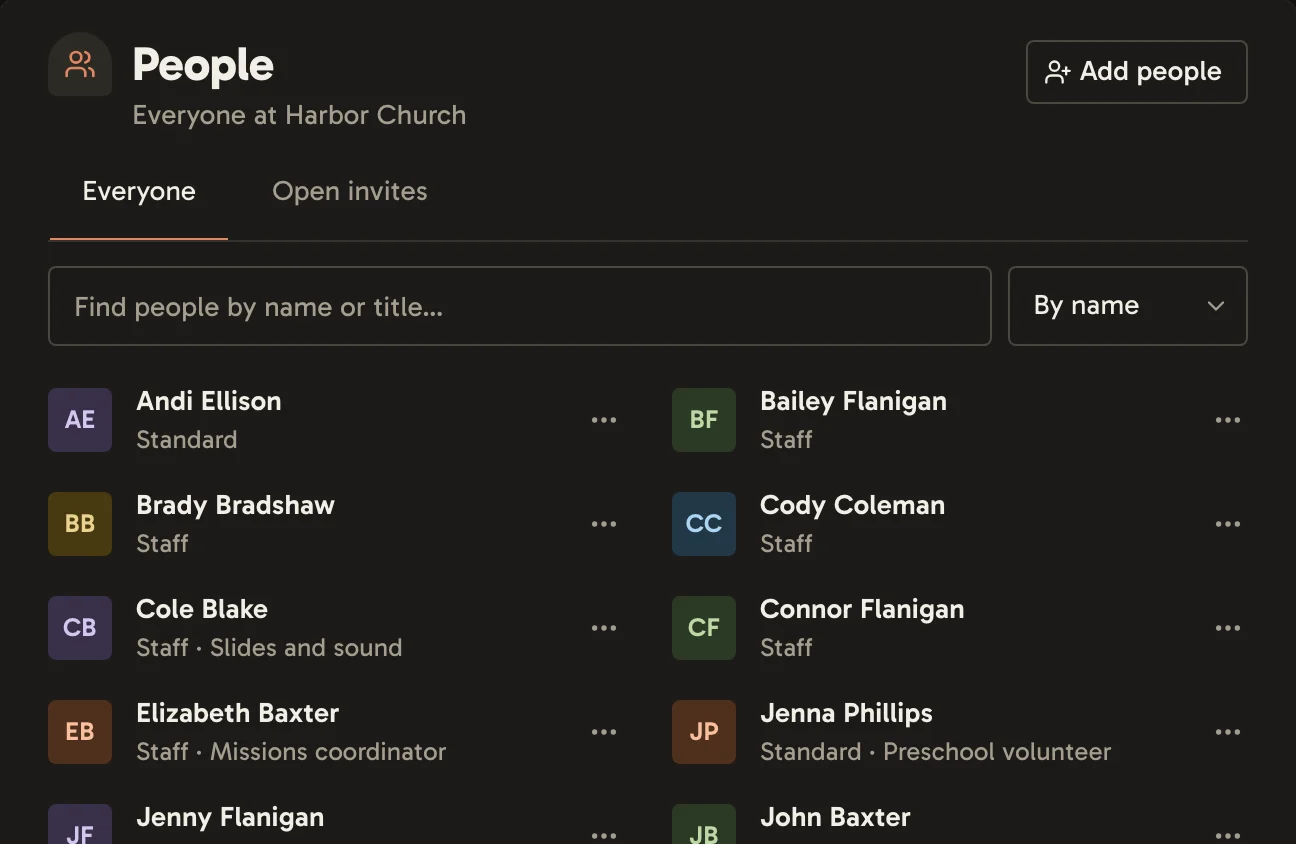
Select People in the sidebar to see everyone at your church. Admins also see each person’s role, open invites, and Add people.
Roles
Each person is an Owner, Admin, Staff, Standard member or Guest. Who can do what lists what each can do, and how church roles and chat roles fit together.
People join as Standard members or guests. Open the … beside someone to Change role, Set title, or Remove them. Removing someone takes them out of every chat, invite-only ones included, and tells them they’re no longer part of your church. What they wrote stays, and opening their name on a message shows they’re no longer in the chat.
Church Chat checks the names Standard members choose, since anyone with a link can join. A name that might not be right for a church shows as "New member", and under it you’ll see Name hidden with the name they chose. If it’s fine, open the … beside them and select Allow name. Staff names aren’t checked, so making someone Staff shows their name too.
Who’s new
Admins see under each person when they joined and how they came in: an invite sent to them, one from Planning Center, a chat’s link or QR code, or your church’s. Choose Newest first to see who joined most recently at the top. Every Monday morning admins also get an email listing who joined in the past week, unless nobody did. Turn it off with New people under Notifications.
Inviting people
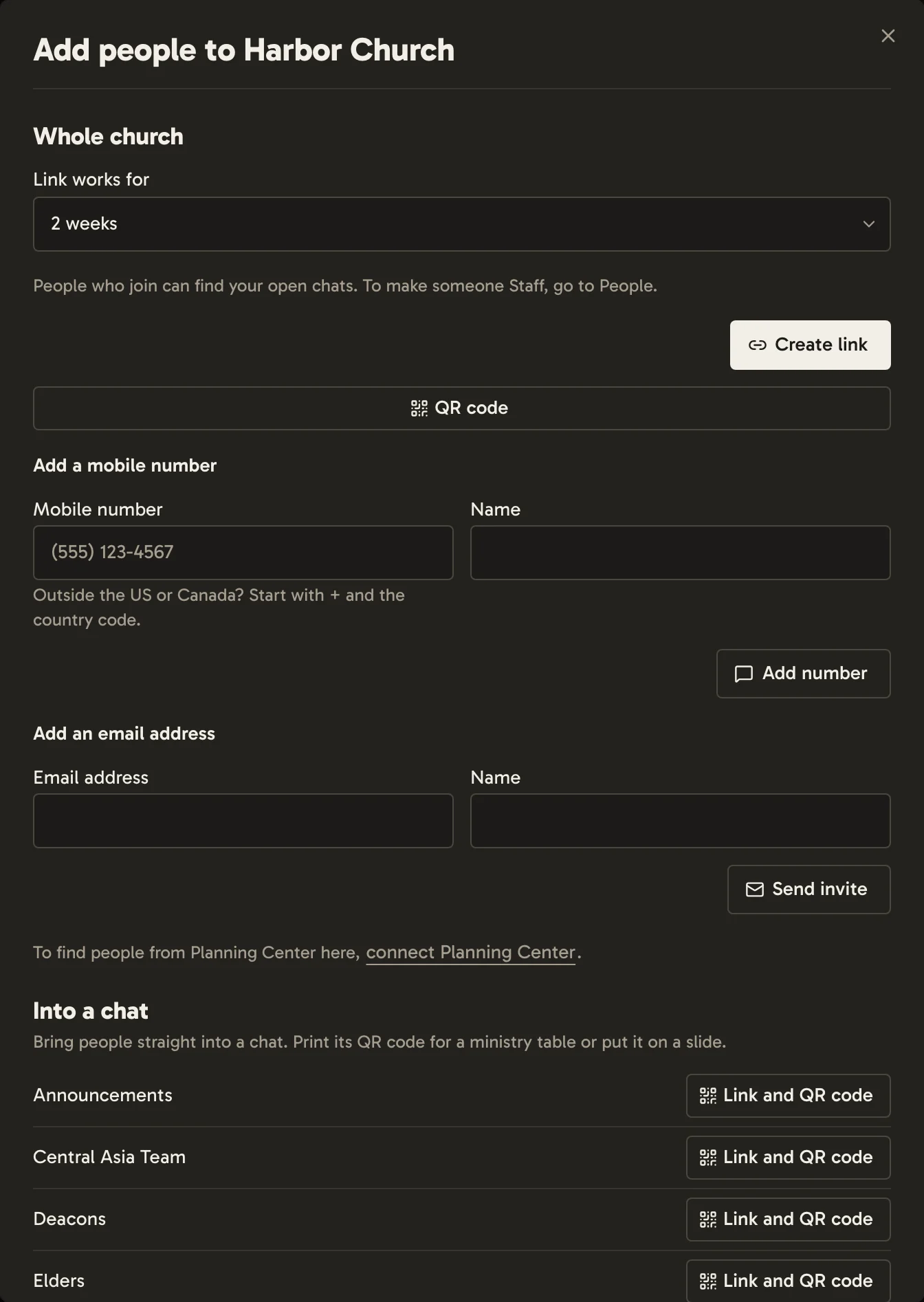
Select Add people, then choose how to invite:
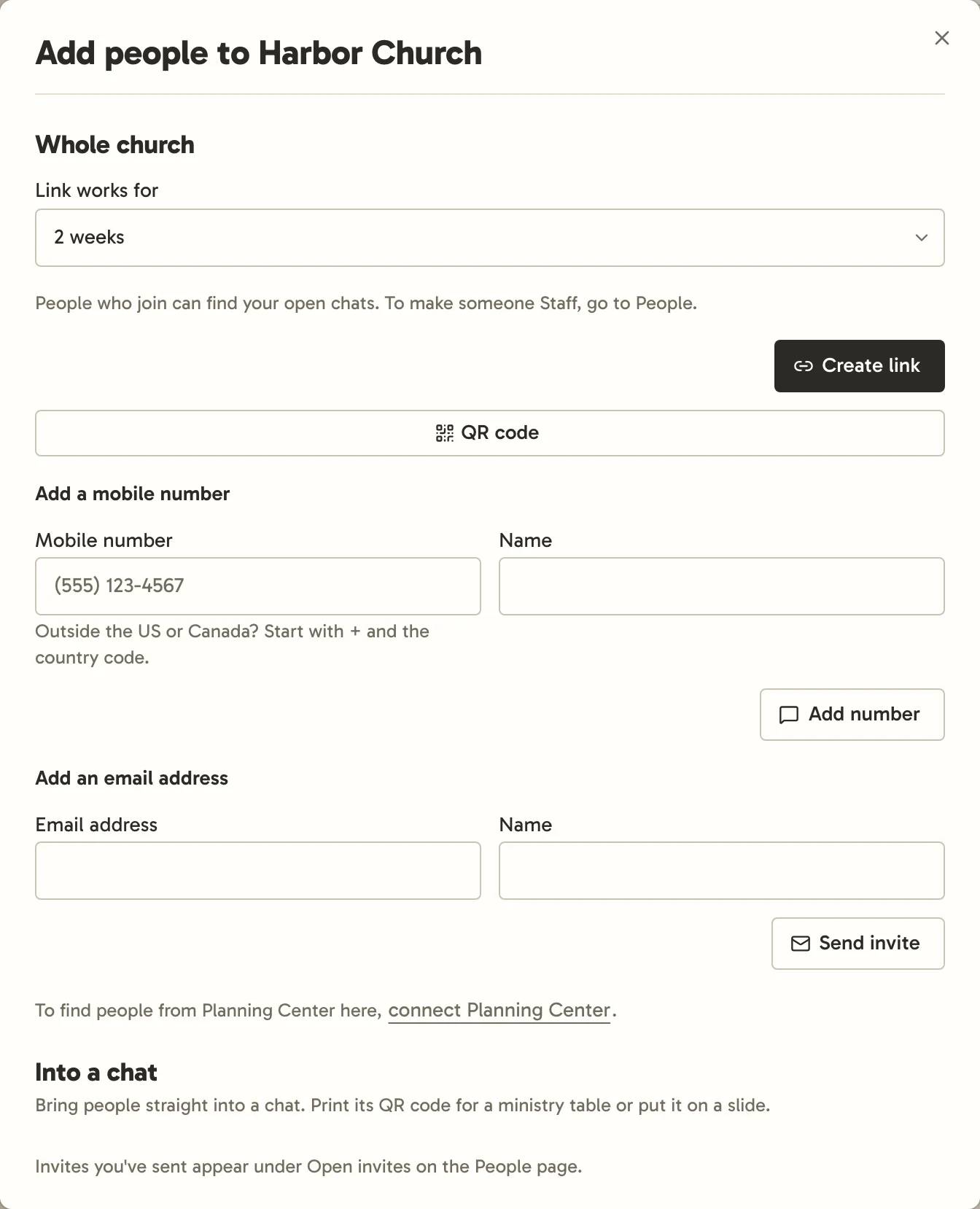
- Specific people: enter their email addresses, separated by commas. Church Chat emails each one an invite that works once, for 14 days.
- Link or QR code: give it a name, like "Welcome table", so you can tell it apart from others. Copy the link, or download its QR code for a slide or the bulletin.
Everyone you invite at once gets the same settings. To give someone different settings, invite them on their own.
- Role: Standard is usually staff, a member, or a regular attender. Guest is usually someone who doesn’t attend your church, like a visiting speaker or a camp counselor.
- Expiration date, for guests: at the end of this day they’re taken out of your church and every chat they’re in. Leave it empty to keep them until you remove them.
- Organization name, for guests: shown beside their name in chats, like "Plant Camp 2027", so everyone knows they’re from outside your church.
- Chats: the chats they join. Members start with your default chats; guests join only the chats you choose.
They open the invite, sign in or create an account, which needs only an emailed link, and select Join. An invite Church Chat emails names who sent it and the chat it’s for, says what Church Chat is, and for a chat that syncs with Planning Center, names the group, team or signup they’re in there. With Planning Center connected, you can also find someone there and select Email invite.
Guests see only the chats they’re in. They can’t find your open chats, see the people page or start direct messages. Make your staff Staff from the People page once they’ve joined.
Every invite still working is under People → Open invites, with its name, who it brings in and the chats it leads to. Cancel one there, or copy its link or show its QR code again. A link made before this feature can’t be copied or shown again; cancel it and make a new one.
Default chats
Under Settings → General → Default chats, choose the chats new Members join, invite-only ones included. Clear them all and new Members join nothing until someone adds them. Guests never join these on their own.
Invite-only chats
Admins can’t see invite-only chats they aren’t in. If you set one up for someone else, invite its real leader, then leave once they’ve joined.