 Church Chat
Church settings
Your church’s name, what members can do, security, devices and storage.
Admins find these under Settings, below their own settings.
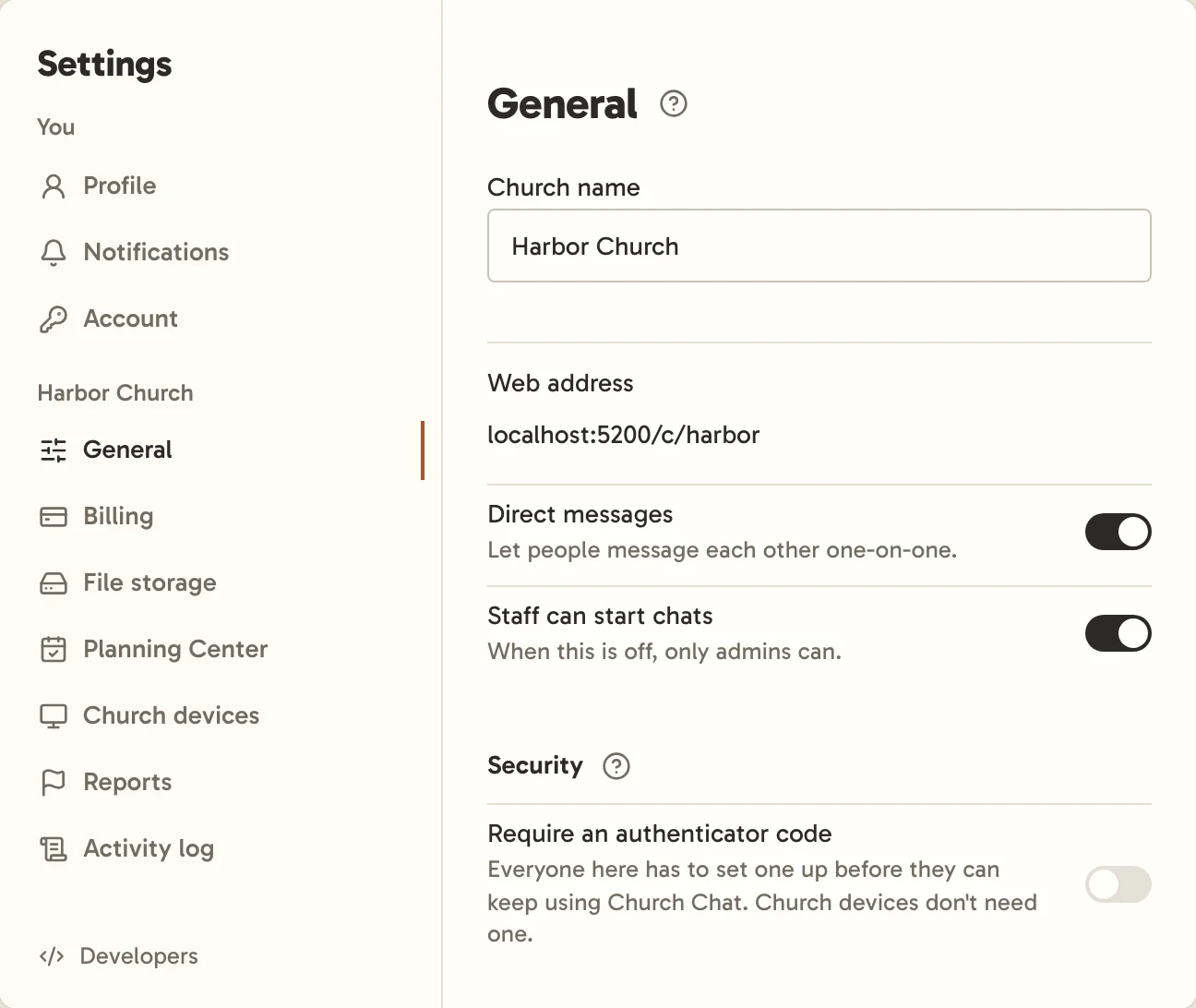
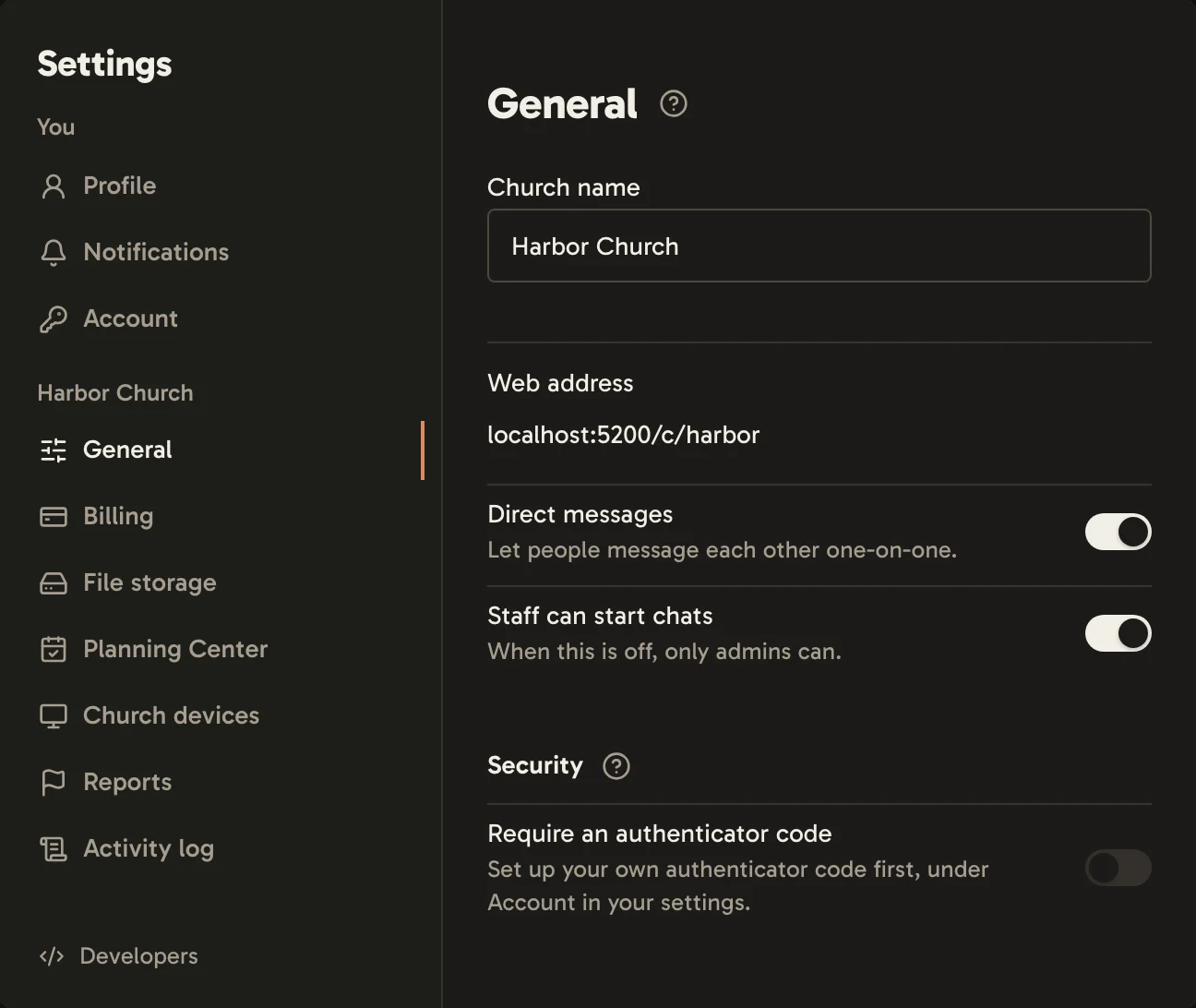
General
- Church name.
- Web address, where people find your church. To change it, contact us, since links to the old address stop working.
- Direct messages lets staff message each other one-on-one.
- Staff can start chats. When this is off, only admins can.
- Require an authenticator code makes everyone at your church set one up. Set up your own first. See Authenticator code.
Church devices
A computer or tablet the church owns, like the one in the sanctuary or at the welcome desk, can stay signed in on its own. It’s labeled as a church device and sees only the chats you add it to.
Select Add device, give it a name, then select Get a setup code. On that device, select Enter a setup code when signing in to the Church Chat app, or go to the address shown in a browser, then enter the code. On a phone or tablet with the app, that address opens the app. Codes work once, for 15 minutes. Church devices don’t need an authenticator code.
Then add the device to the chats it should show, from each chat’s settings. See Church devices in a chat.
File storage
How much space your church’s files take, by chat, with the largest files listed. Invite-only chats are shown as one total. Voice messages don’t use any space. Deleting a message deletes its files and frees their space.
Free trials include 100 MB. Each plan includes more. See Billing.
Reports
Messages people have reported to your church’s admins, with a copy of each. Remove message deletes it for everyone in the conversation and marks the report resolved, without you joining the chat it’s in. Mark resolved once it’s handled another way, or Send to Church Chat team if it needs us.
A new report appears in each admin’s Activity and arrives by email. Once one admin deals with it, it’s marked read for the rest.
Activity log
A record of important changes, like invites and role changes.