 Church Chat
Signing in
The ways to sign in, and adding an email address, phone number or passkey.
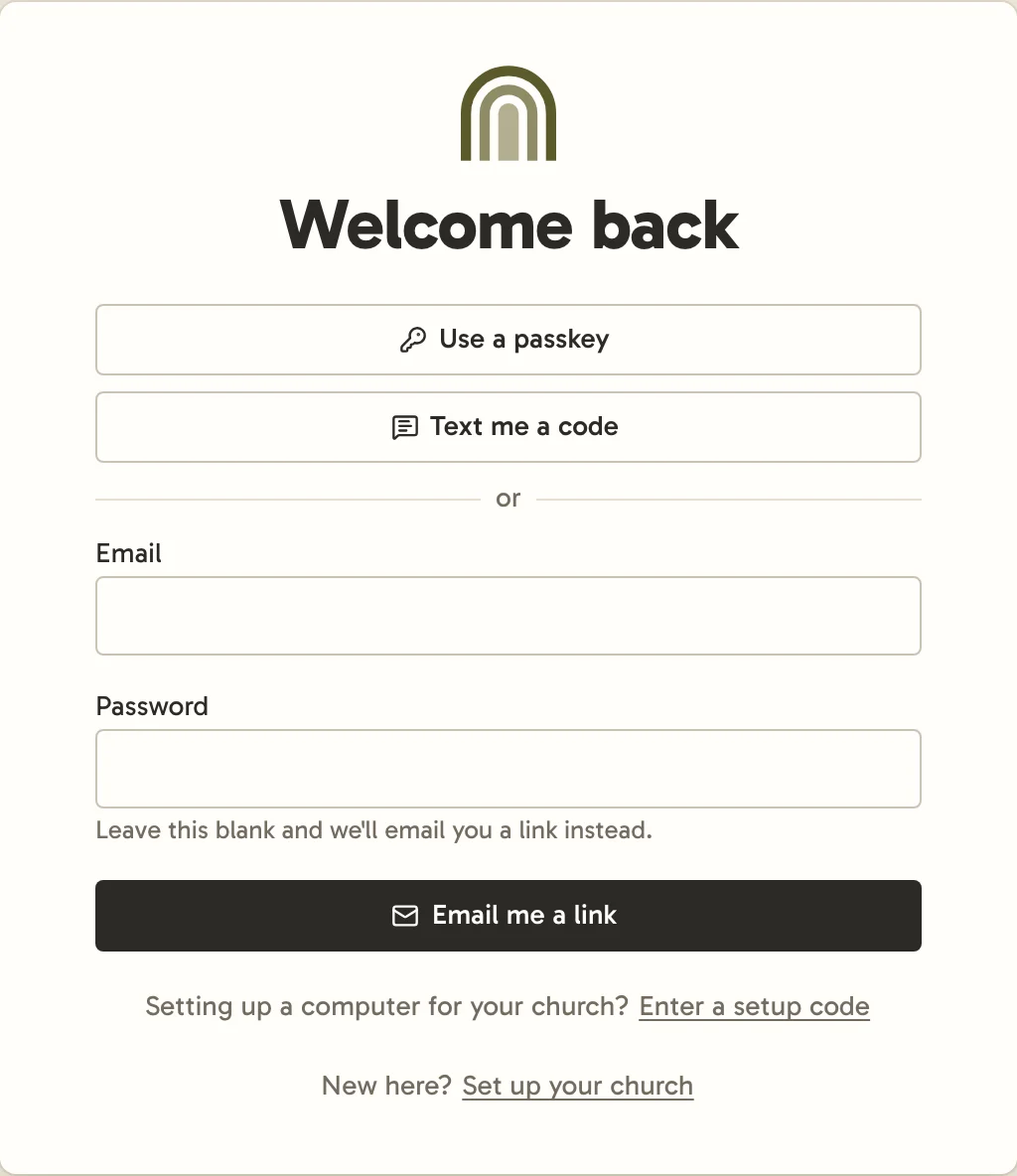
You can sign in with:
- Use a passkey, which uses your phone’s or computer’s fingerprint, face or PIN.
- Text me a code, sent to your mobile number. Codes last 10 minutes. A code only goes to a number that has an account or that someone at a church has invited. On a phone, the keyboard offers to fill in the code from the text.
- Your email and password.
- An emailed link. Enter your email, leave the password blank, and select Email me a link. Open the email, select Sign in to Church Chat, then Finish signing in. The page shows which email the link signs in, and says so if the browser is signed in as someone else. The link works once, for 10 minutes. If it has expired, ask for another.
An emailed link also creates your account if you don’t have one yet, so it’s the simplest way to accept an invite by email. See Joining your church.
There’s no separate way to reset a password. If you’ve forgotten yours, sign in with an emailed link.
In the desktop app, select Continue in your browser to sign in with a passkey or an emailed link.
Adding ways in
Open Settings → Account.
- Add an email sends a link to confirm the address.
- Add a mobile number texts a code to confirm the number, which you can then sign in with.
- Add a passkey saves one on the device you’re using.
If your account has an email address, we email it whenever a passkey or mobile number is added, a passkey is removed, or an authenticator code is turned on or off, so you’d notice a change you didn’t make. These emails can’t be turned off.
An email address or a phone number belongs to one account. Two accounts aren’t combined, so add your email to the account you already have rather than creating another one.
Owning a church needs an email address, since billing notices go there. Anyone else can use a phone number alone.